Cover the shell, capture, browsers, and networking in the manual
Add chapters for the top bar and its panels, screenshots and recording,
toggles/idle/screensaver, browsers, shell plugins, and networking, which
collects the Wi-Fi, DNS, firewall, and Tailscale material that was spread
across the FAQ, TUIs, and services chapters.

Fill smaller gaps in the existing chapters: user hooks, autostart, menu
extensions, printing, power profiles, factory reset, drive and user
passwords, passwordless sudo, firmware updates, display text size, and
the LocalSend share menu.

Co-Authored-By: Claude Fable 5 <noreply@anthropic.com>
This commit is contained in:
 David Heinemeier HanssonandClaude Fable 5 committed
1 parent
144f4d1e31
commit
55434792d1
51 files changed
+736
-43
No files matched your search
@@ -0,0 +1,43 @@
|
||||
# Branding
|
||||
|
||||
Omarchy allows you to set your company logo or personal image for both the boot unlock, the screensaver, and the about screen.
|
||||
|
||||
### Boot unlock
|
||||
|
||||
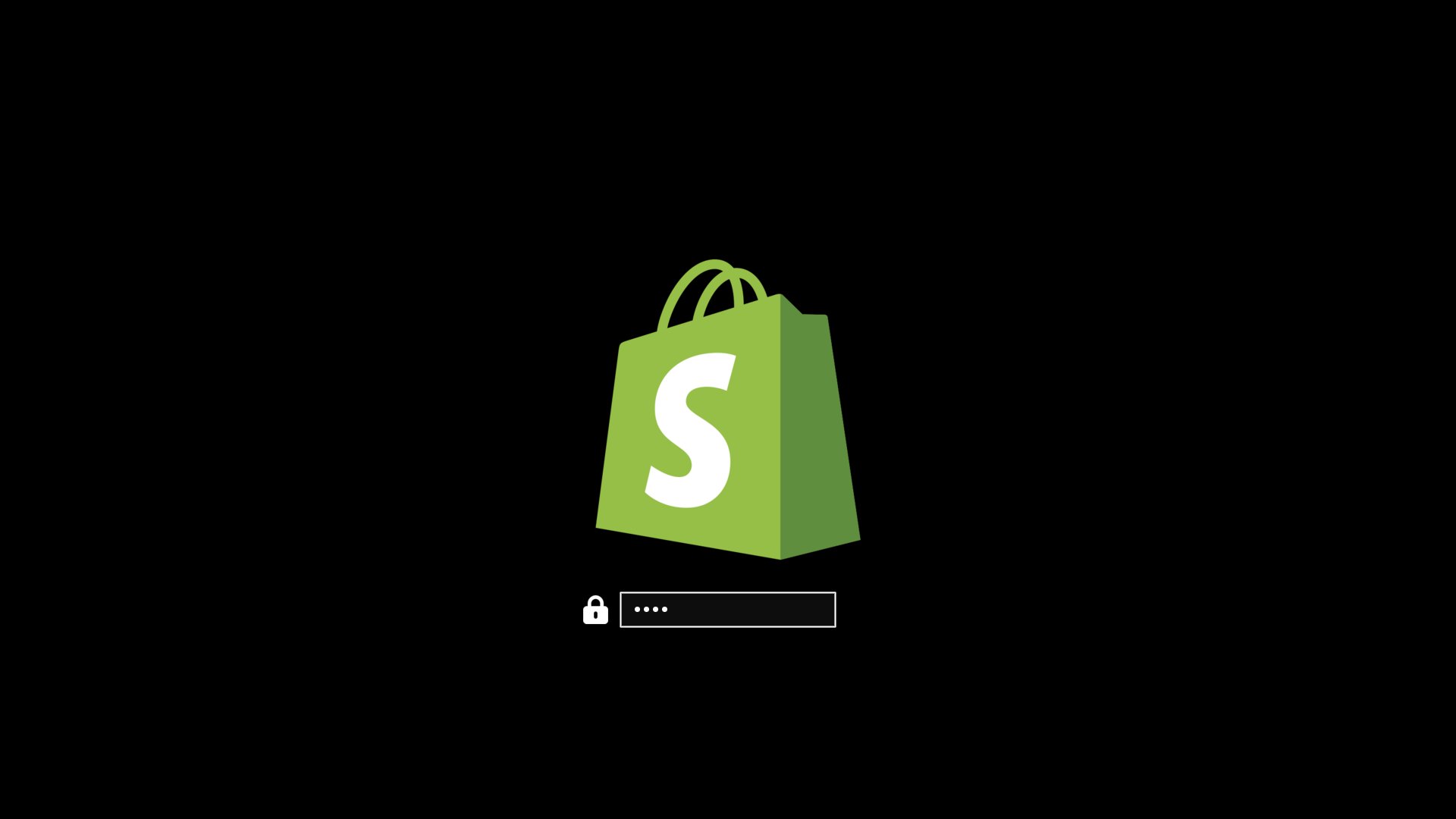
You can use `omarchy plymouth preview` to see what your custom logo and colors would look like. It takes a background color, a text color, a logo png, and a path for the preview image:
|
||||
|
||||
```
|
||||
omarchy plymouth preview '#1d2021' '#ebdbb2' logo.png preview.png
|
||||
```
|
||||
|
||||
Then apply the setup with `omarchy plymouth set '#1d2021' '#ebdbb2' logo.png`, which will also give the SDDM login screen the same colors and logo. If you want to revert, you can use `omarchy plymouth reset`.
|
||||
|
||||
|
||||
|
||||
### Screensaver
|
||||
|
||||
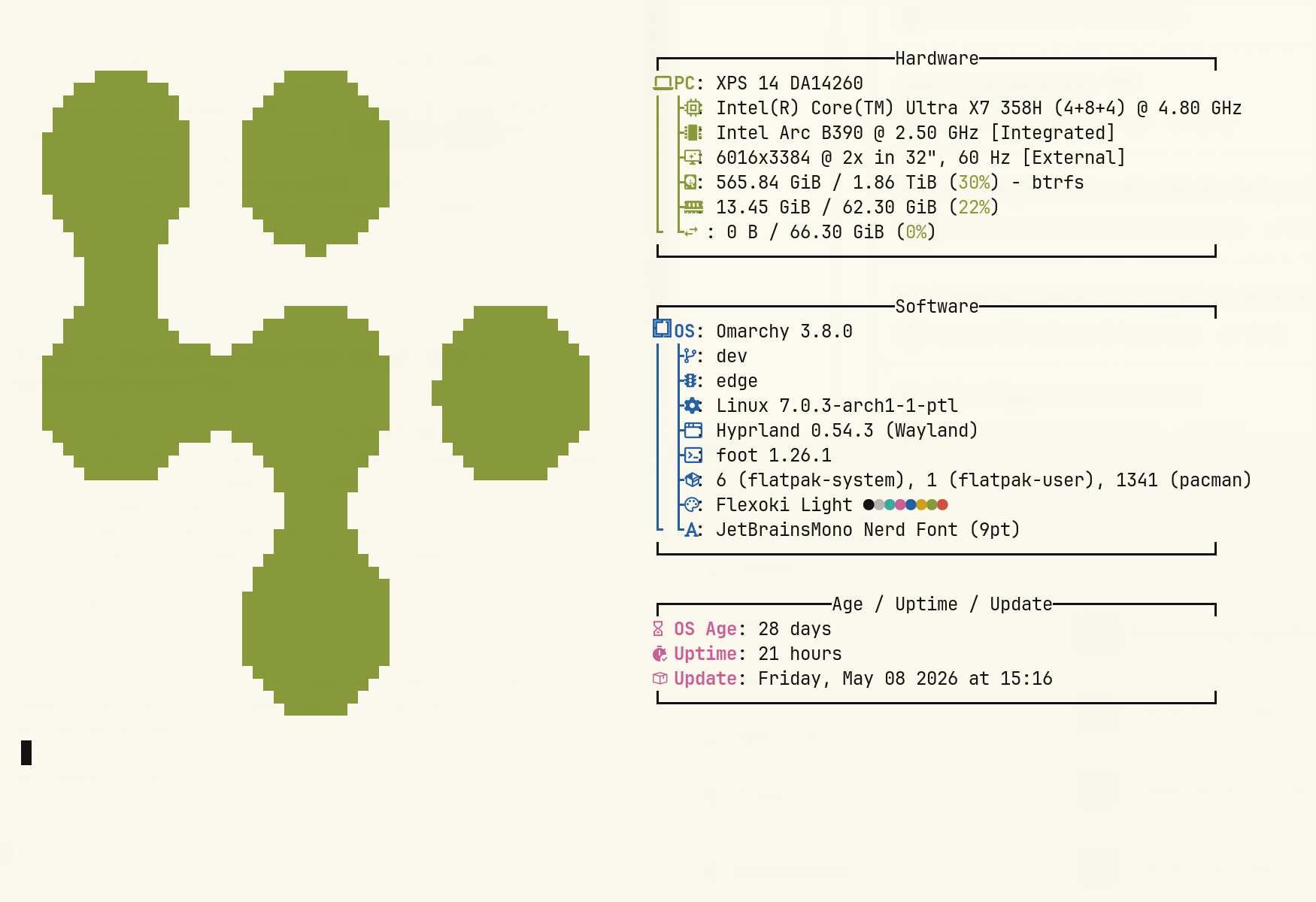
You can change the logo used for the screensaver under _Style > Screensaver_. It's an ASCII logo, so you can edit the text directly, but you can also hand it a png or svg image, and we'll convert that to ASCII. It looks pretty cool.
|
||||
|
||||

|
||||
|
||||
There are three entries in that menu:
|
||||
|
||||
- **Edit Text** opens `~/.config/omarchy/branding/screensaver.txt` in your editor. Type or paste whatever you like — ASCII art, your name, a rude word. Save and quit, and the screensaver fires up immediately so you can see it.
|
||||
- **Set From Image** opens a file picker for a png or svg, converts it to ASCII, and shows you the result. Logos with a clear silhouette work far better than photos.
|
||||
- **Restore Default** puts the Omarchy logo back.
|
||||
|
||||
### About screen
|
||||
|
||||
The same three options are under _Style > About_ for the _About_ screen you get from the Omarchy menu, and they work identically — the file is `~/.config/omarchy/branding/about.txt`, and the About window pops up after each change. The About art is converted to a smaller size than the screensaver's, since it has to fit in a window rather than fill your display.
|
||||
|
||||
|
||||
|
||||
### Converting images yourself
|
||||
|
||||
Both of the _Set From Image_ options are just calling `omarchy transcode ascii`, which you can run directly if you want control over the conversion:
|
||||
|
||||
```
|
||||
omarchy transcode ascii ~/logo.svg ~/.config/omarchy/branding/screensaver.txt --width 100
|
||||
```
|
||||
|
||||
It takes `--width` and `--height` in terminal columns and rows, a `--mode` of either `braille` (the default, and much finer) or `block`, a `--threshold` percentage for deciding which pixels count as part of the logo, and `--invert` for when your logo is light on a dark background. If a conversion comes out as a blob, the threshold is usually the knob to turn.
|
||||
Reference in new issue
Block a user