 David Heinemeier HanssonandClaude Fable 5
55434792d1
David Heinemeier HanssonandClaude Fable 5
55434792d1
Add chapters for the top bar and its panels, screenshots and recording,
toggles/idle/screensaver, browsers, shell plugins, and networking, which
collects the Wi-Fi, DNS, firewall, and Tailscale material that was spread
across the FAQ, TUIs, and services chapters.

Fill smaller gaps in the existing chapters: user hooks, autostart, menu
extensions, printing, power profiles, factory reset, drive and user
passwords, passwordless sudo, firmware updates, display text size, and
the LocalSend share menu.

Co-Authored-By: Claude Fable 5 <noreply@anthropic.com>
2.5 KiB
Branding
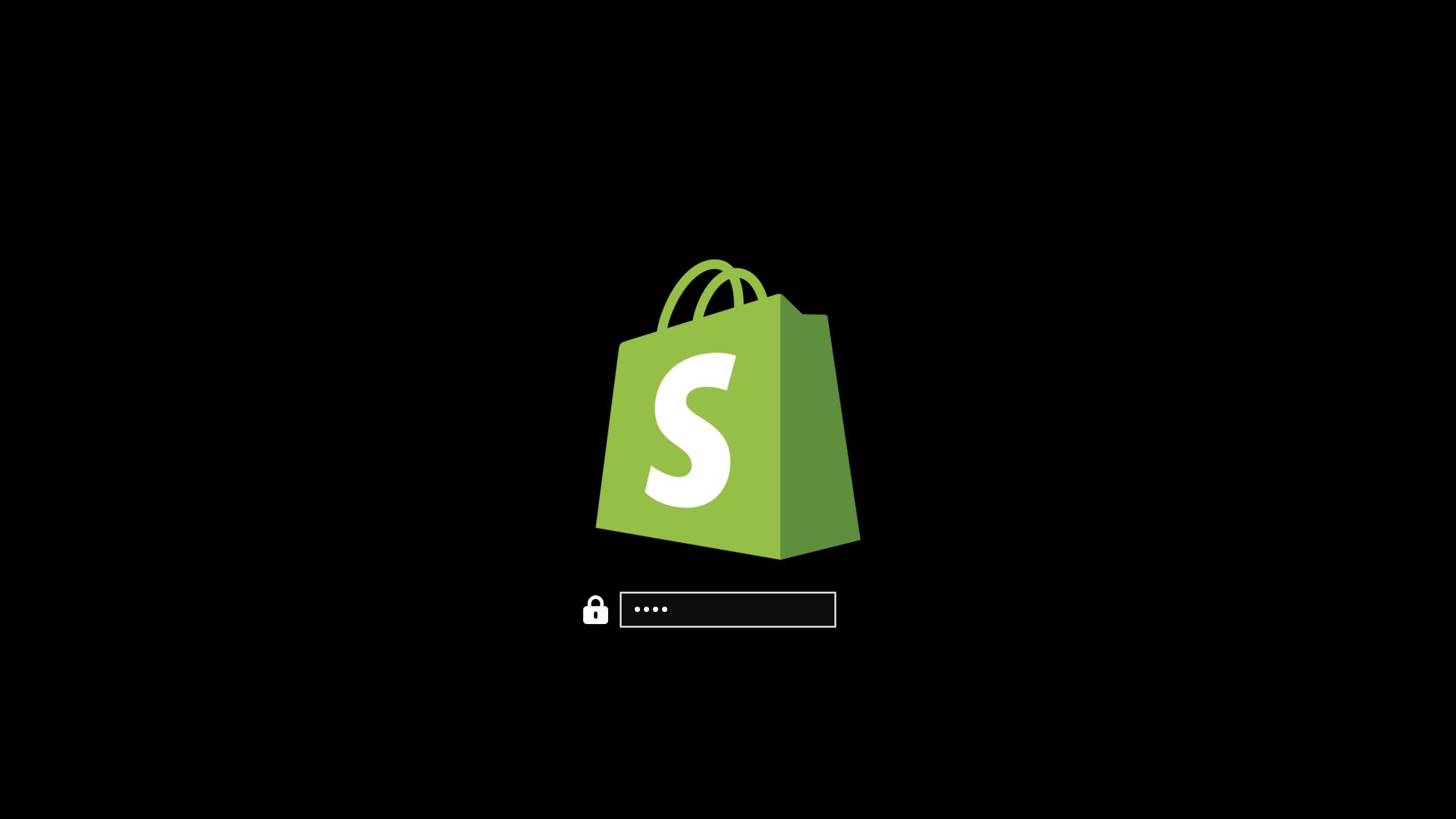
Omarchy allows you to set your company logo or personal image for both the boot unlock, the screensaver, and the about screen.
Boot unlock
You can use omarchy plymouth preview to see what your custom logo and colors would look like. It takes a background color, a text color, a logo png, and a path for the preview image:
omarchy plymouth preview '#1d2021' '#ebdbb2' logo.png preview.png
Then apply the setup with omarchy plymouth set '#1d2021' '#ebdbb2' logo.png, which will also give the SDDM login screen the same colors and logo. If you want to revert, you can use omarchy plymouth reset.
Screensaver
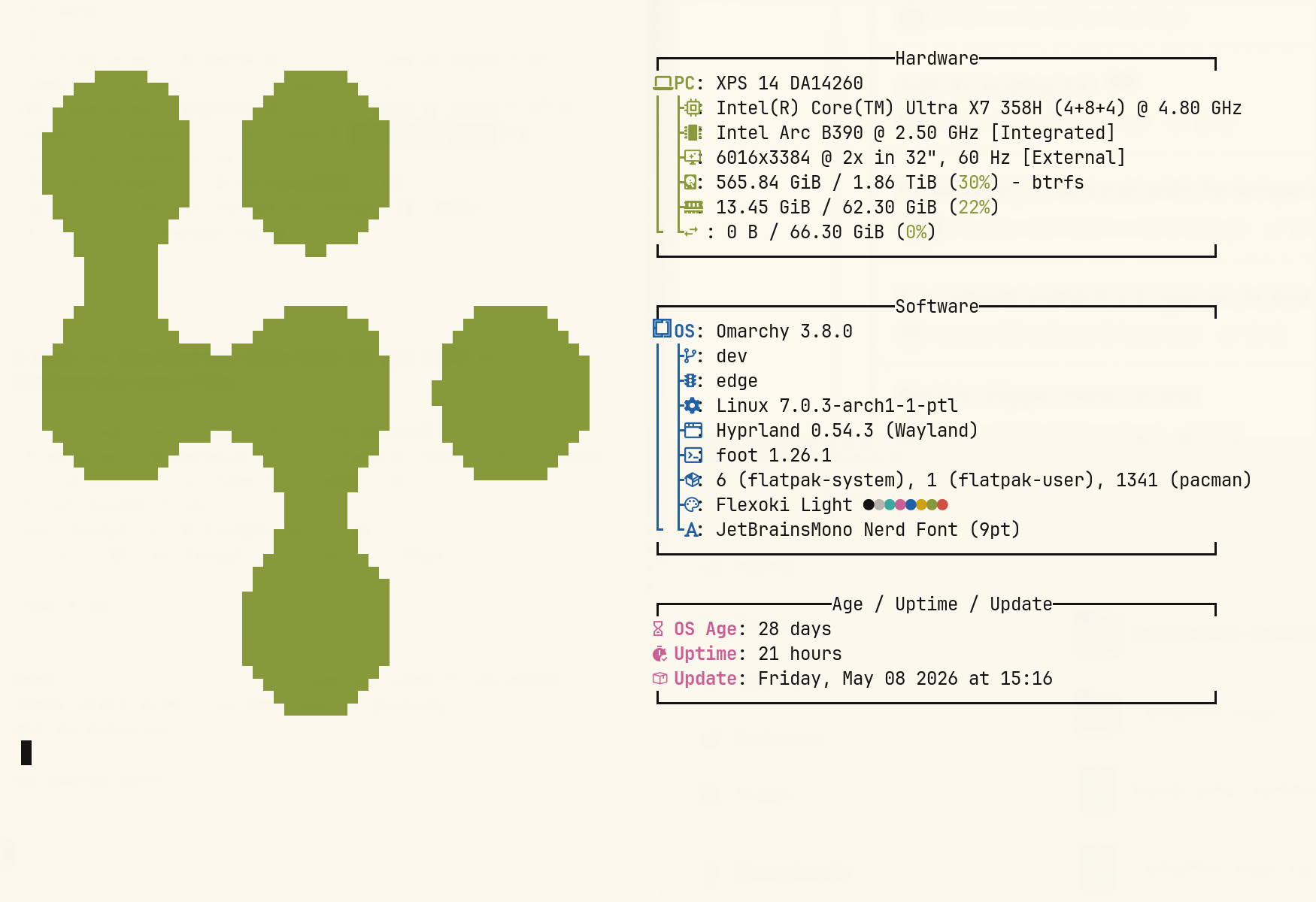
You can change the logo used for the screensaver under Style > Screensaver. It's an ASCII logo, so you can edit the text directly, but you can also hand it a png or svg image, and we'll convert that to ASCII. It looks pretty cool.

There are three entries in that menu:
- Edit Text opens
~/.config/omarchy/branding/screensaver.txtin your editor. Type or paste whatever you like — ASCII art, your name, a rude word. Save and quit, and the screensaver fires up immediately so you can see it. - Set From Image opens a file picker for a png or svg, converts it to ASCII, and shows you the result. Logos with a clear silhouette work far better than photos.
- Restore Default puts the Omarchy logo back.
About screen
The same three options are under Style > About for the About screen you get from the Omarchy menu, and they work identically — the file is ~/.config/omarchy/branding/about.txt, and the About window pops up after each change. The About art is converted to a smaller size than the screensaver's, since it has to fit in a window rather than fill your display.
Converting images yourself
Both of the Set From Image options are just calling omarchy transcode ascii, which you can run directly if you want control over the conversion:
omarchy transcode ascii ~/logo.svg ~/.config/omarchy/branding/screensaver.txt --width 100
It takes --width and --height in terminal columns and rows, a --mode of either braille (the default, and much finer) or block, a --threshold percentage for deciding which pixels count as part of the logo, and --invert for when your logo is light on a dark background. If a conversion comes out as a blob, the threshold is usually the knob to turn.