 David Heinemeier HanssonandClaude Fable 5
55434792d1
David Heinemeier HanssonandClaude Fable 5
55434792d1
Add chapters for the top bar and its panels, screenshots and recording,
toggles/idle/screensaver, browsers, shell plugins, and networking, which
collects the Wi-Fi, DNS, firewall, and Tailscale material that was spread
across the FAQ, TUIs, and services chapters.

Fill smaller gaps in the existing chapters: user hooks, autostart, menu
extensions, printing, power profiles, factory reset, drive and user
passwords, passwordless sudo, firmware updates, display text size, and
the LocalSend share menu.

Co-Authored-By: Claude Fable 5 <noreply@anthropic.com>
4.1 KiB
Themes
Omarchy comes with twenty-two beautiful themes. You can select between them via Style > Theme in the Omarchy Menu (Super + Space) or hop directly to the theme selector using Super + Ctrl + Shift + Space.
Each theme styles the desktop, terminal, neovim, activity screen (btop), Chromium, and the entire Omarchy shell: top bar, menu, notifications, OSD, and the lock screen. (For Obsidian, you must manually select the Omarchy theme via Appearance > Themes inside the app).
Themes have a set of background images that you can pick between using Super + Ctrl + Space.
You can find even more themes on the extra themes page or even make your own theme.
 Tokyo Night
 Catppuccin
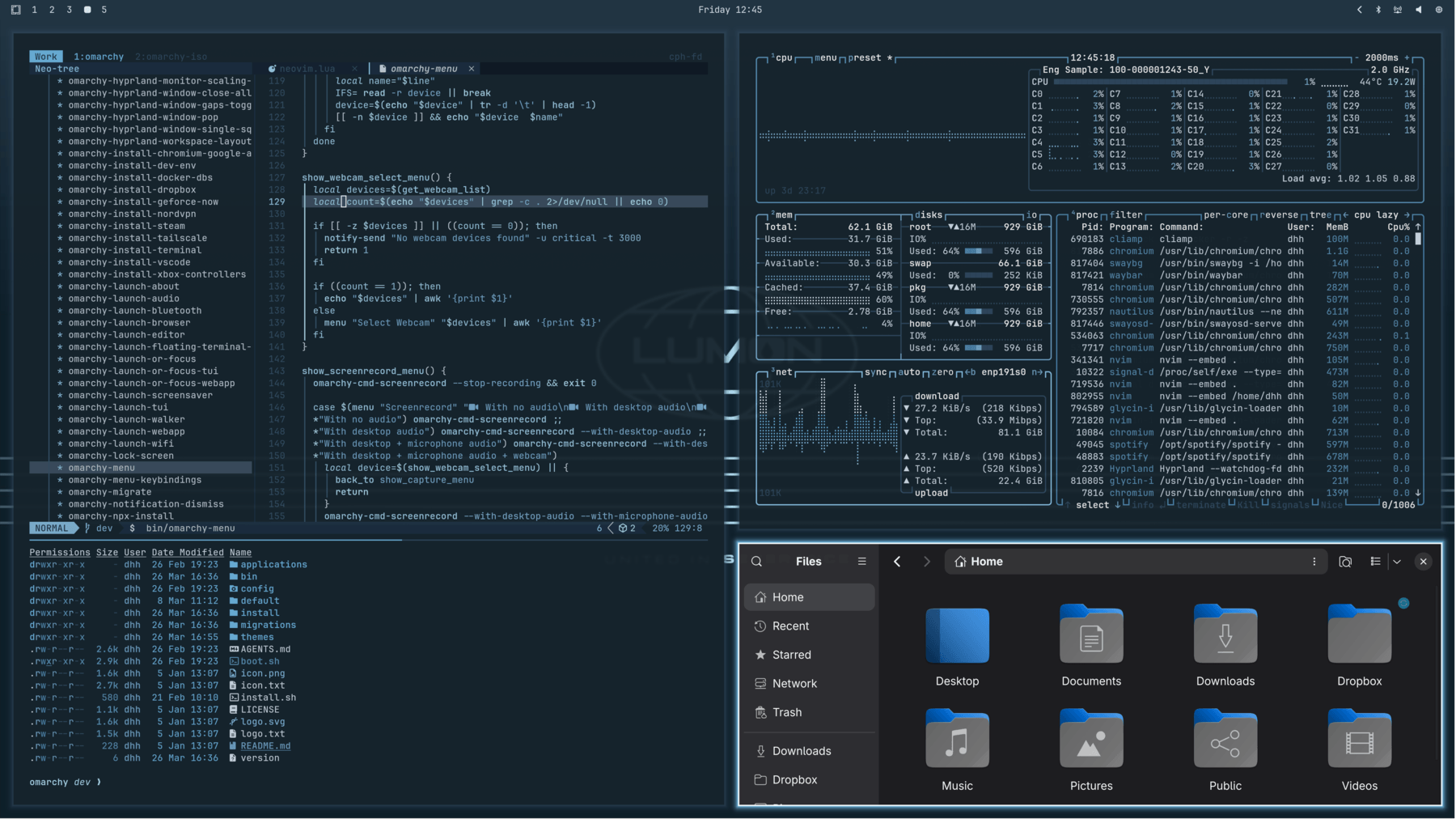 Lumon
Lumon
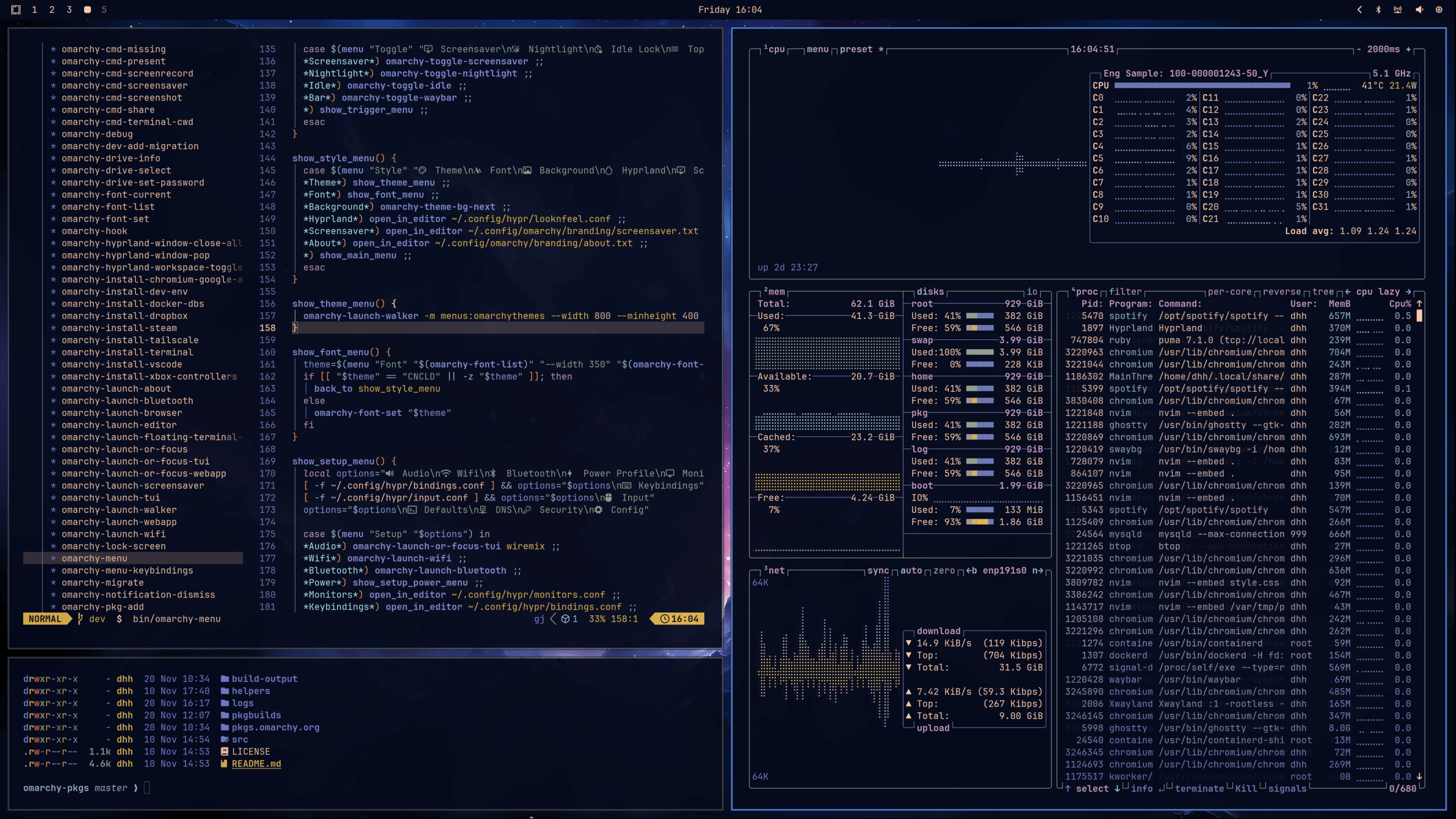 Ethereal
 Everforest
 Gruvbox
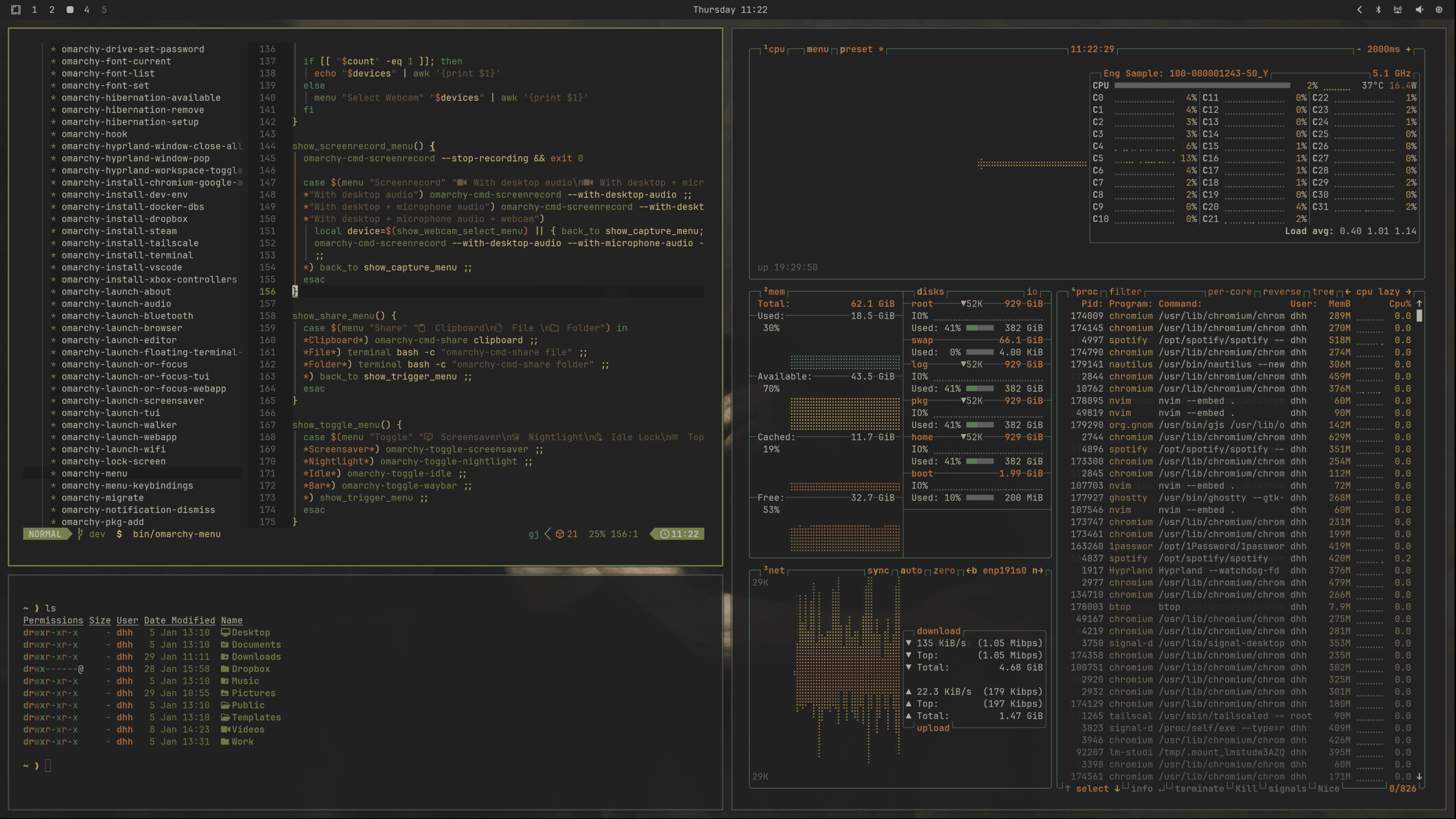 Miasma
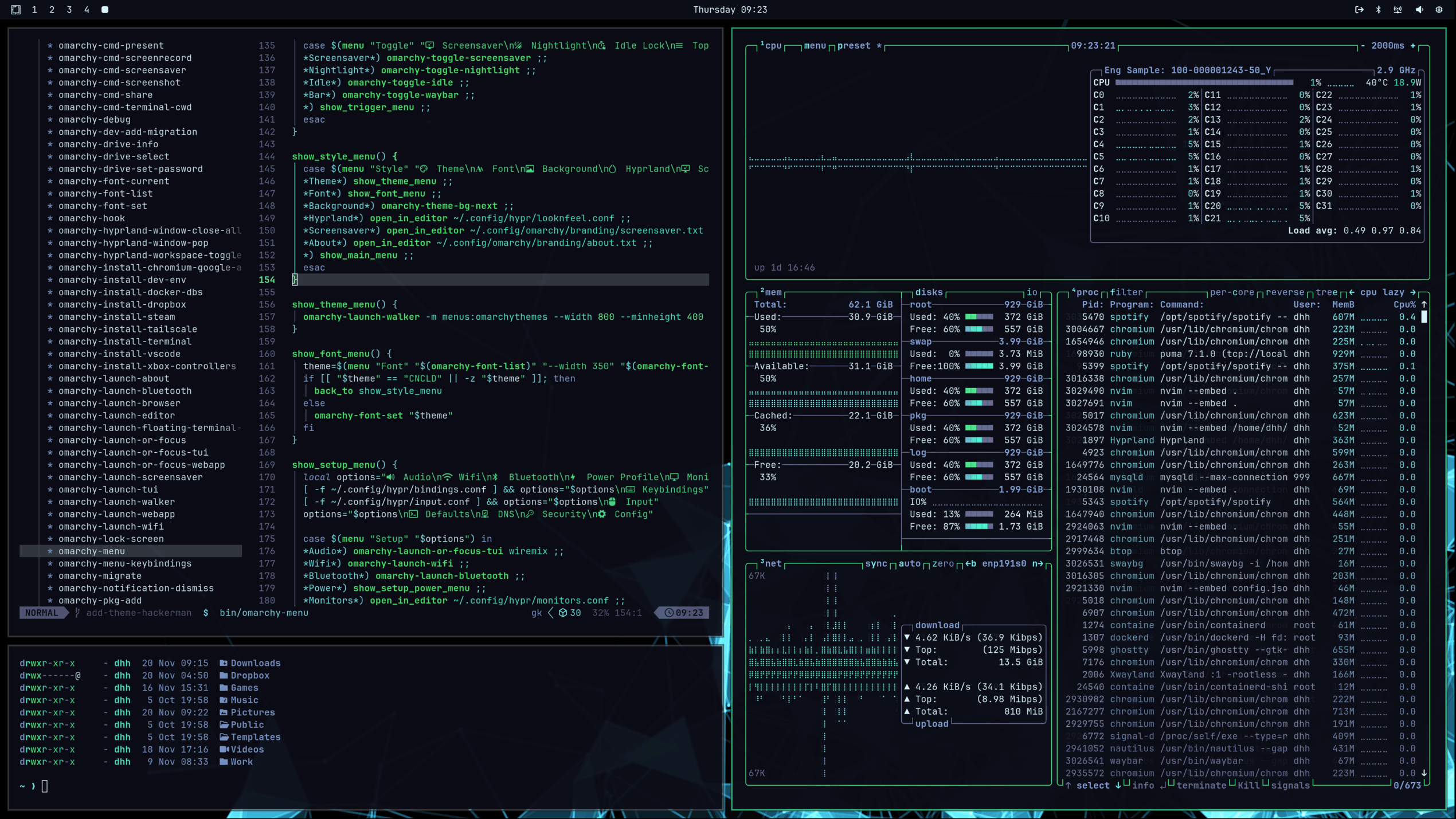 Hackerman
 Osaka Jade
 Kanagawa
 Nord
Nord
 Matte Black
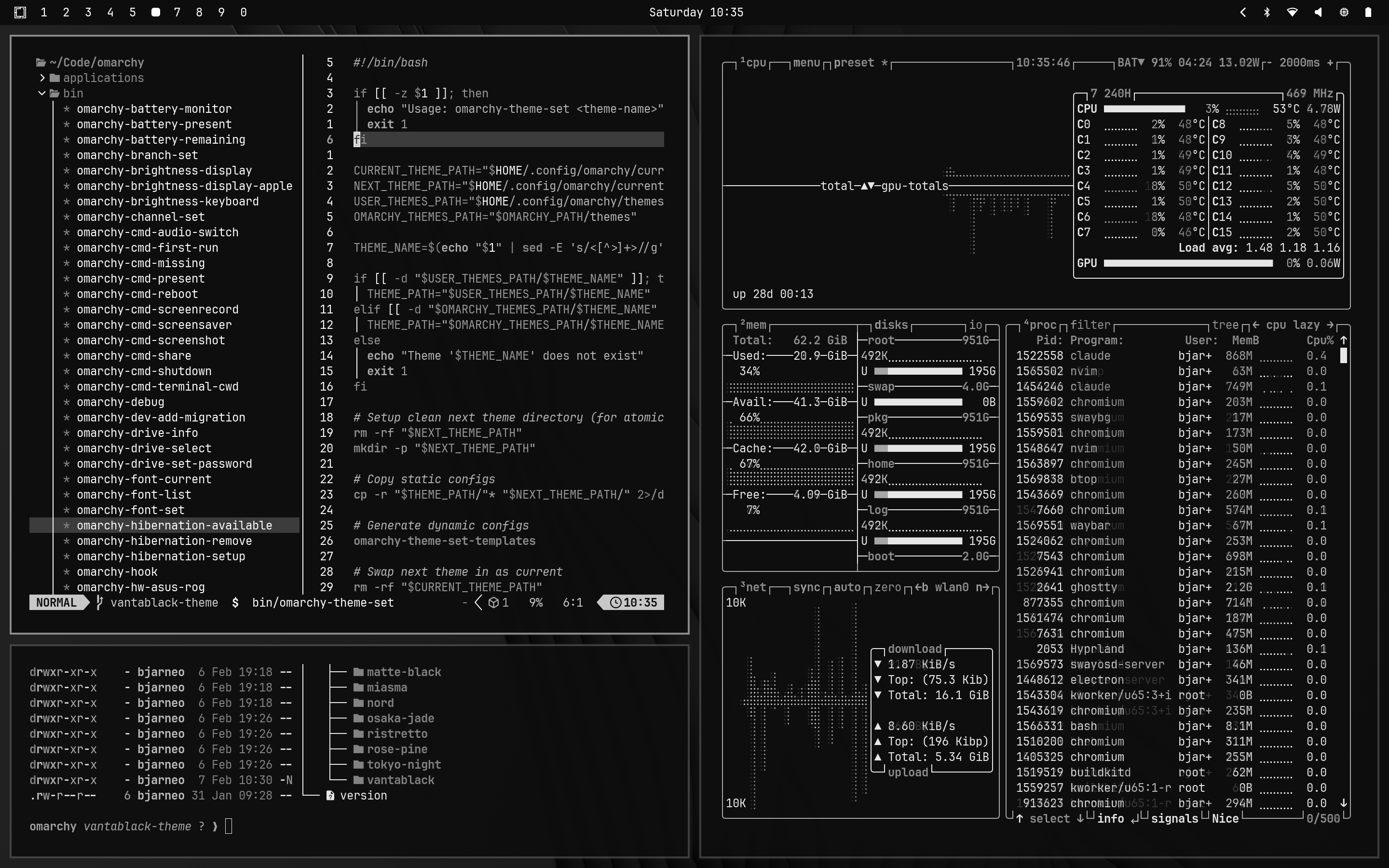 Vantablack
 Ristretto
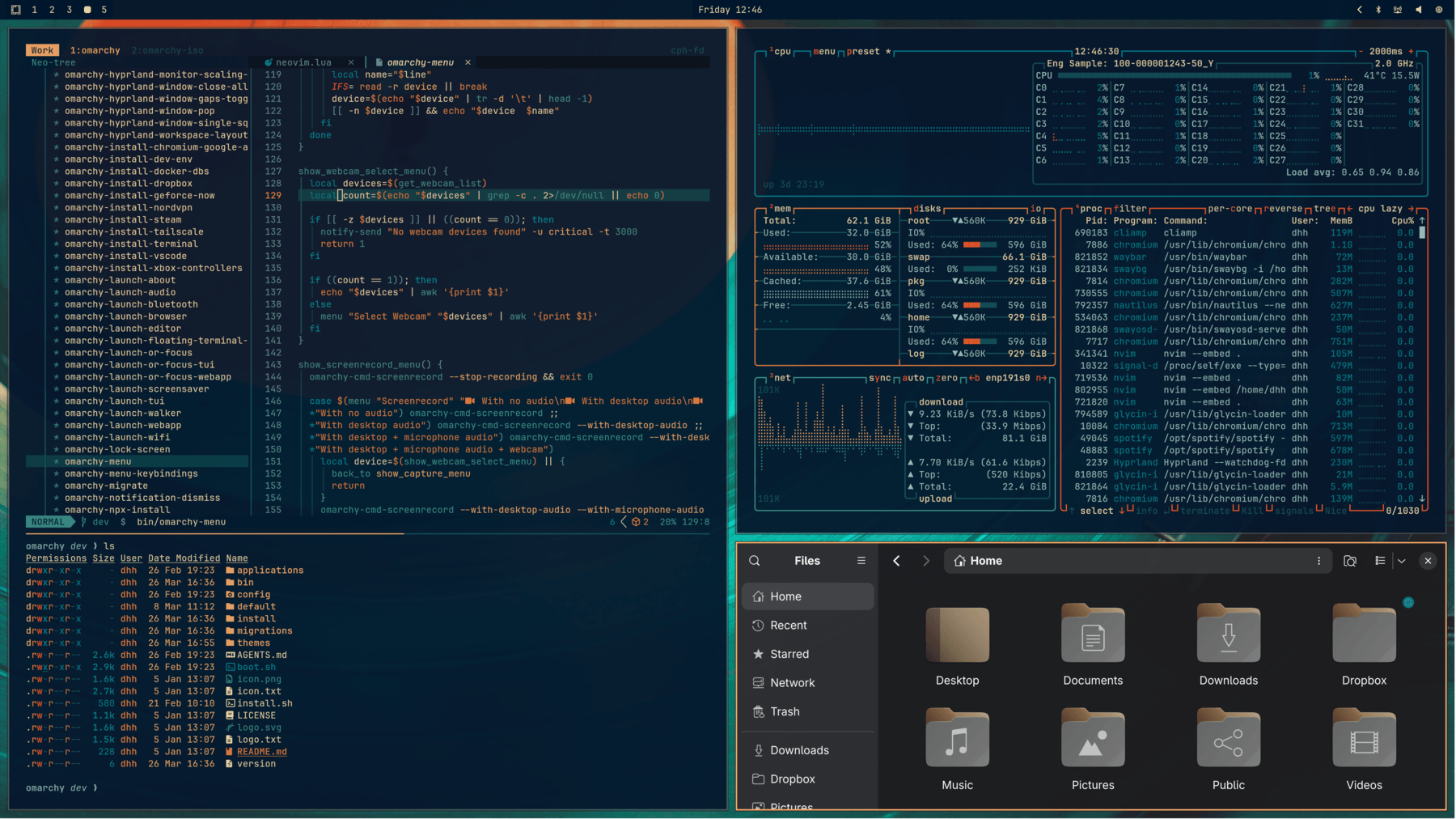 Retro 82
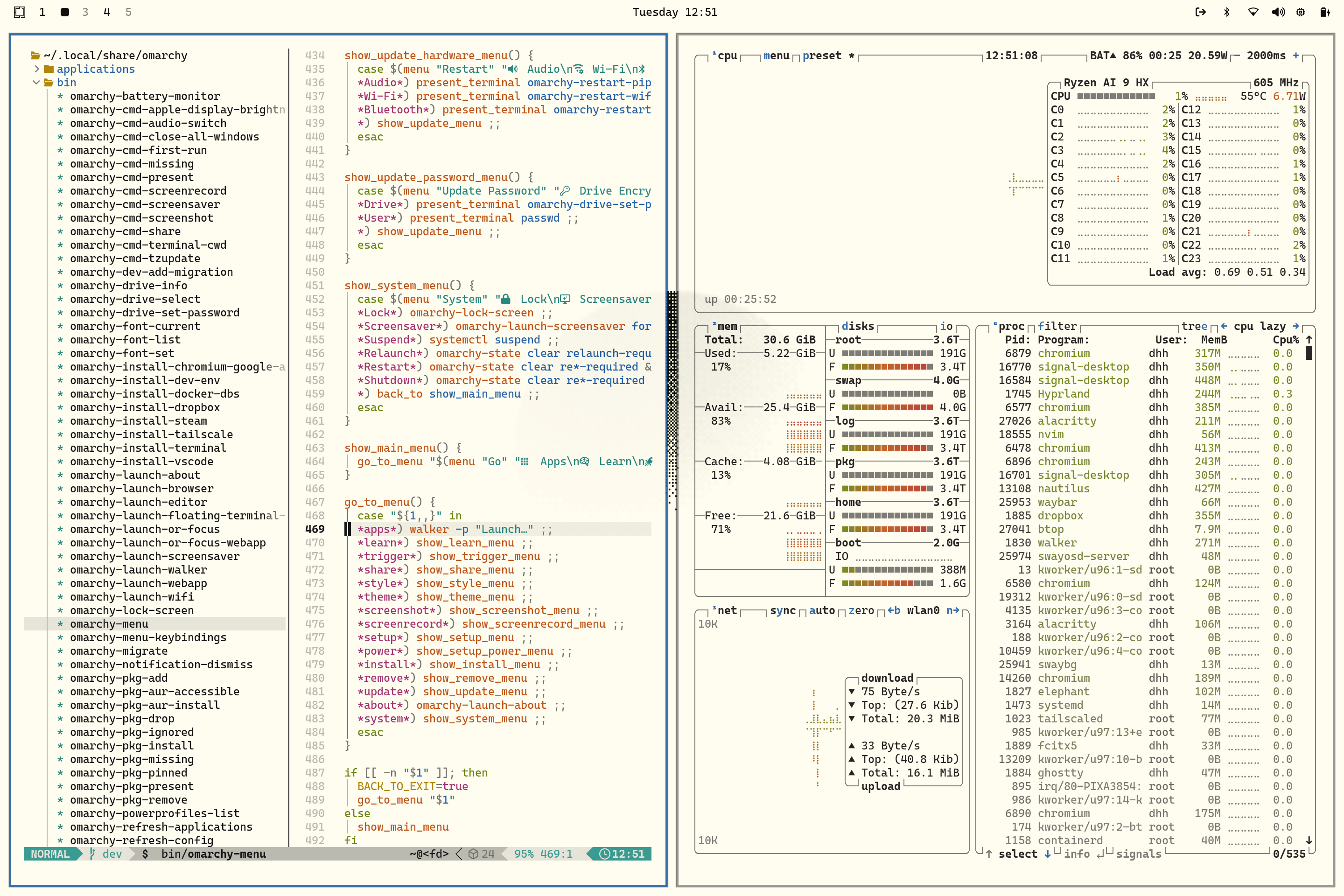 Flexoki Light
 Rose Pine
 Catppuccin Latte
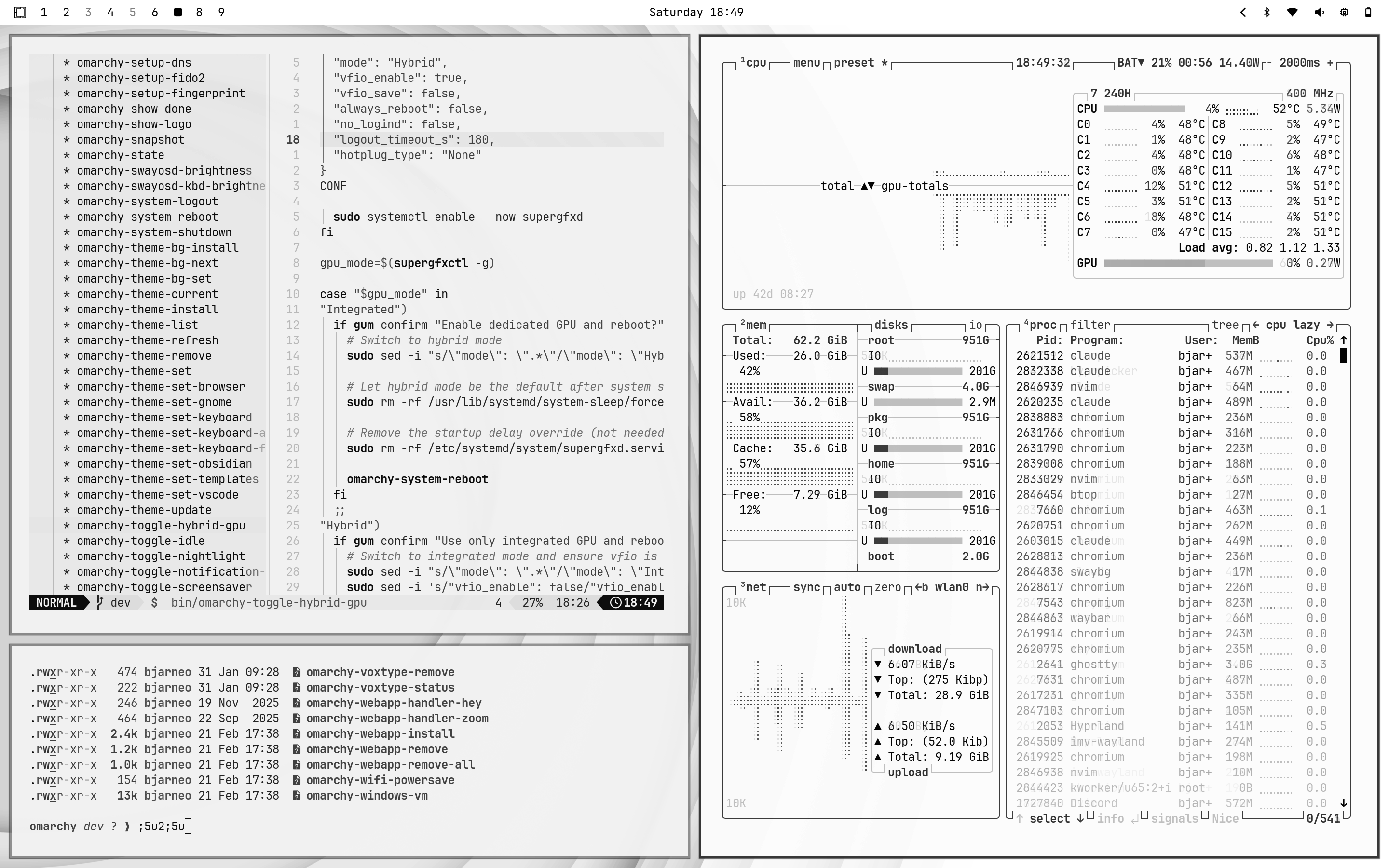 White
White
Unlocks
Themes can also have a custom unlock design, which is used for the boot decryption process. You can select one of these under Style > Unlock. They look like this:
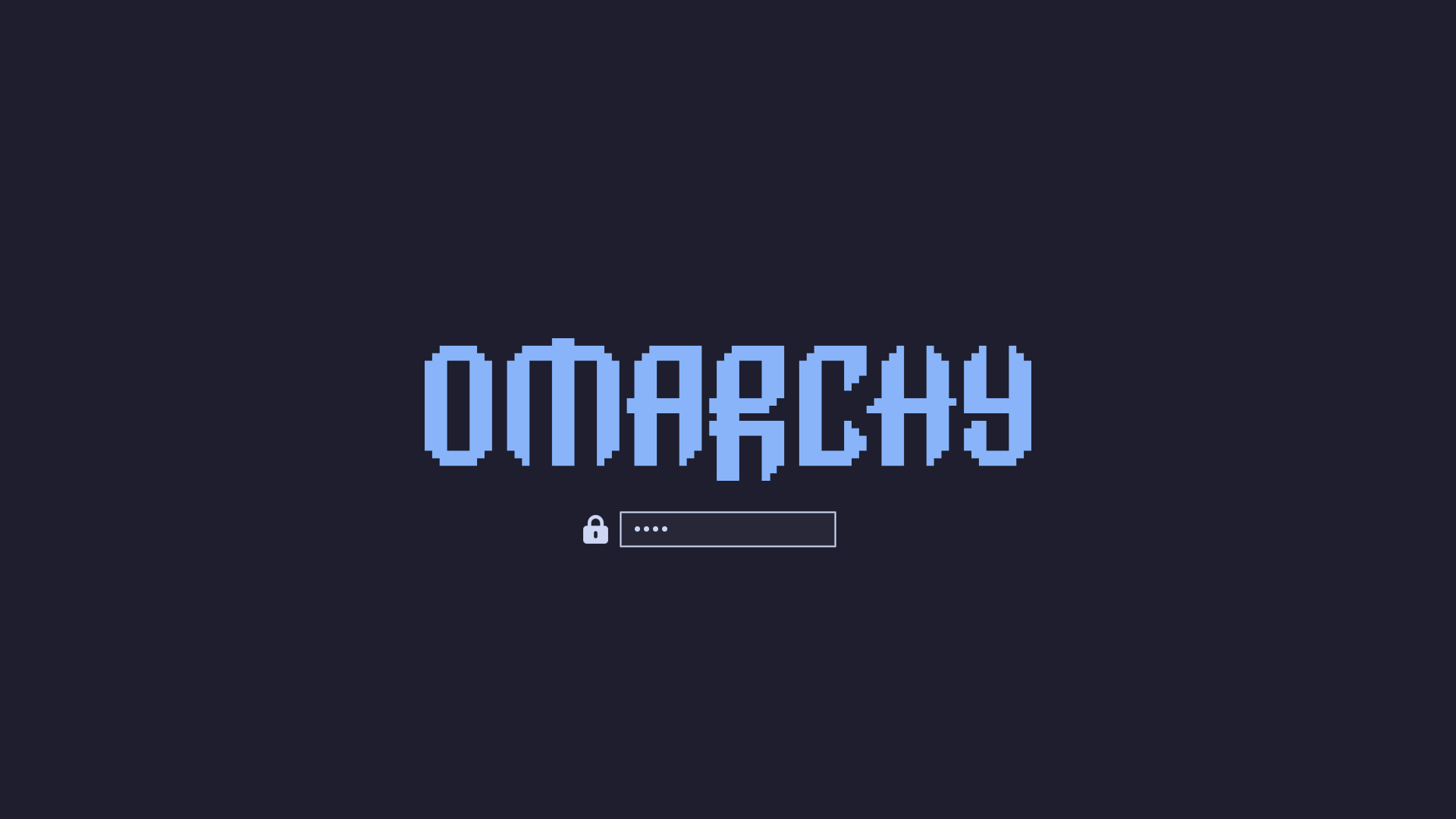 Catppuccin
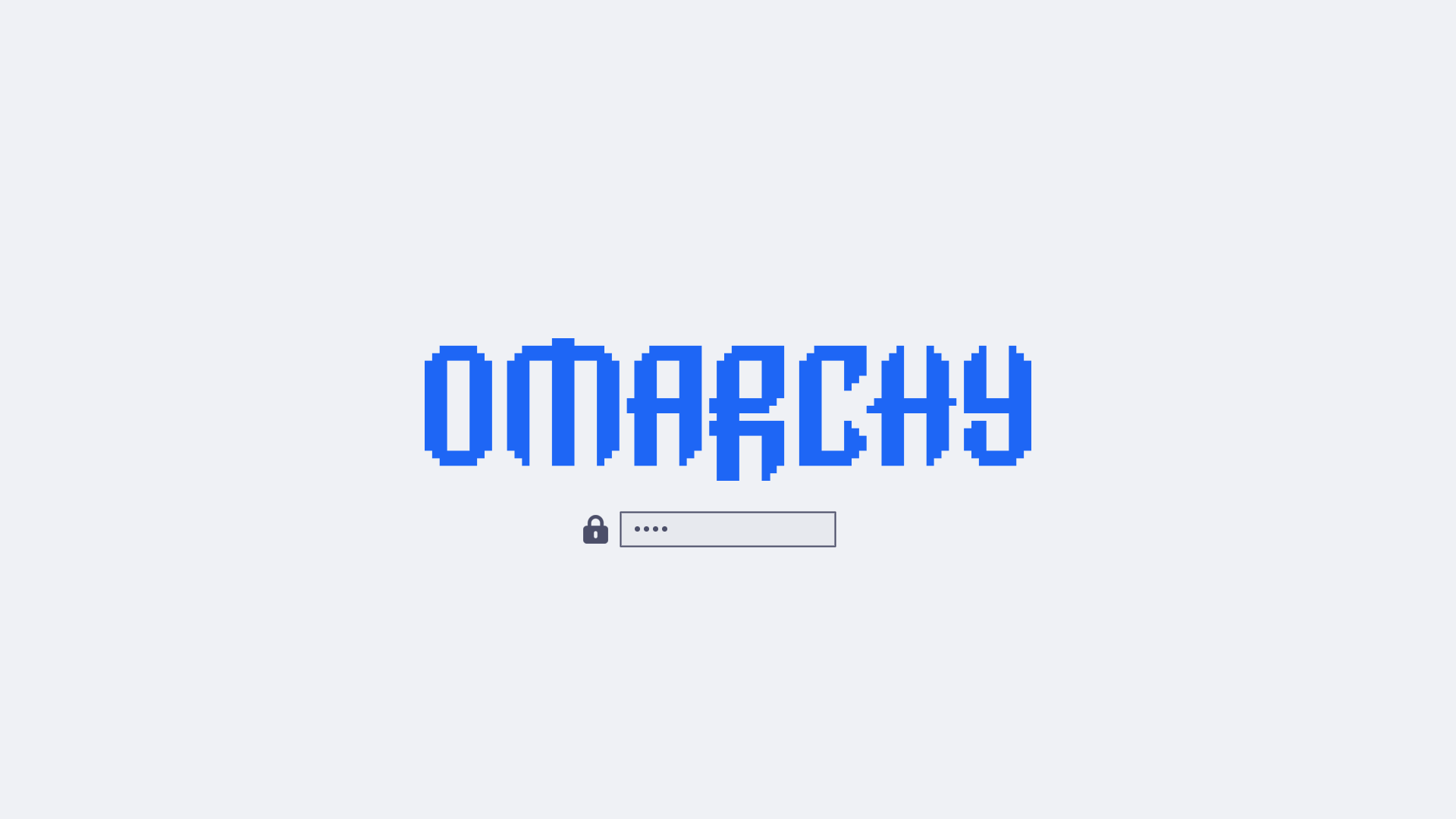 Catppuccin Latte
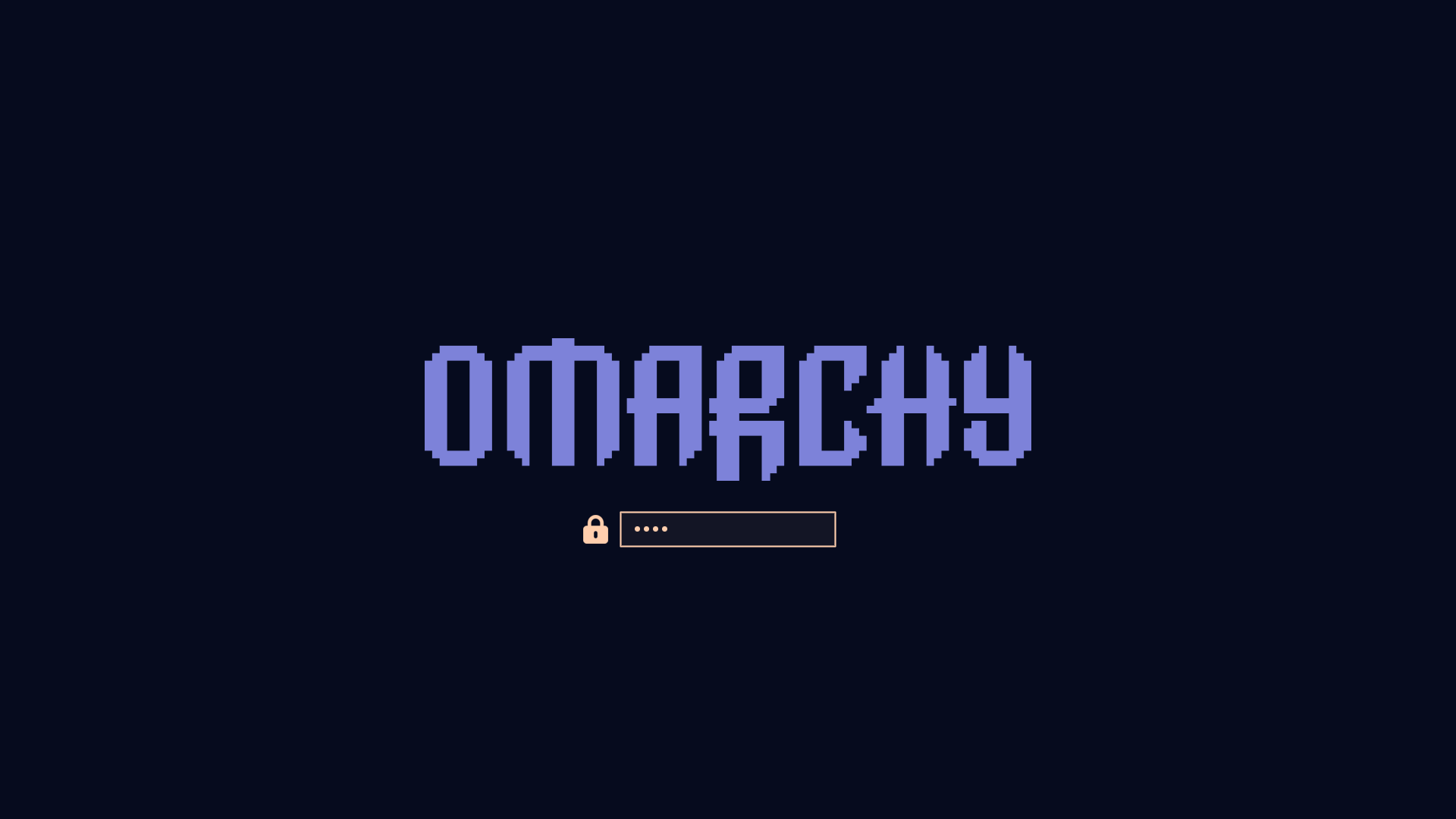 Ethereal
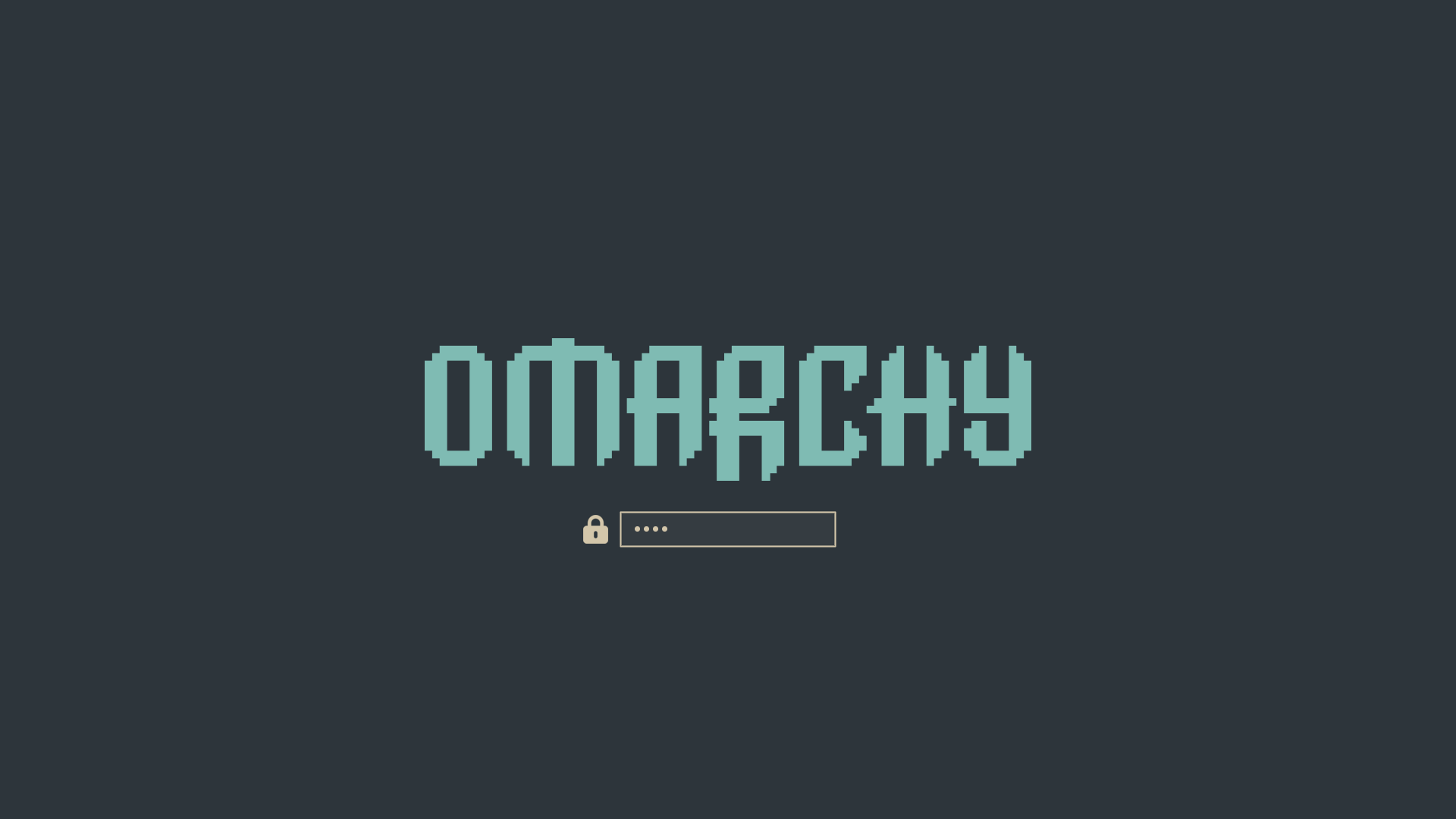 Everforest
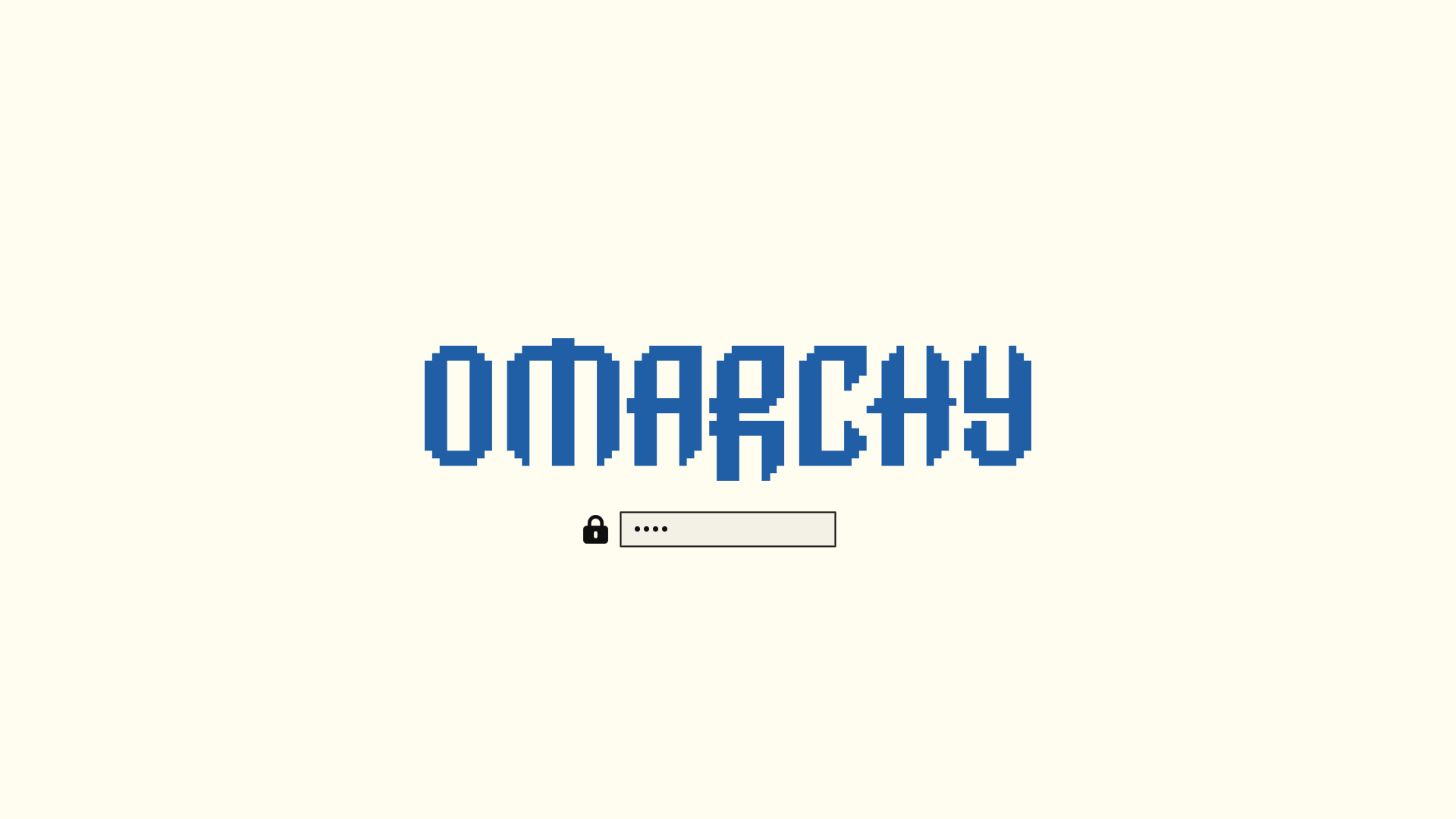 Flexoki Light
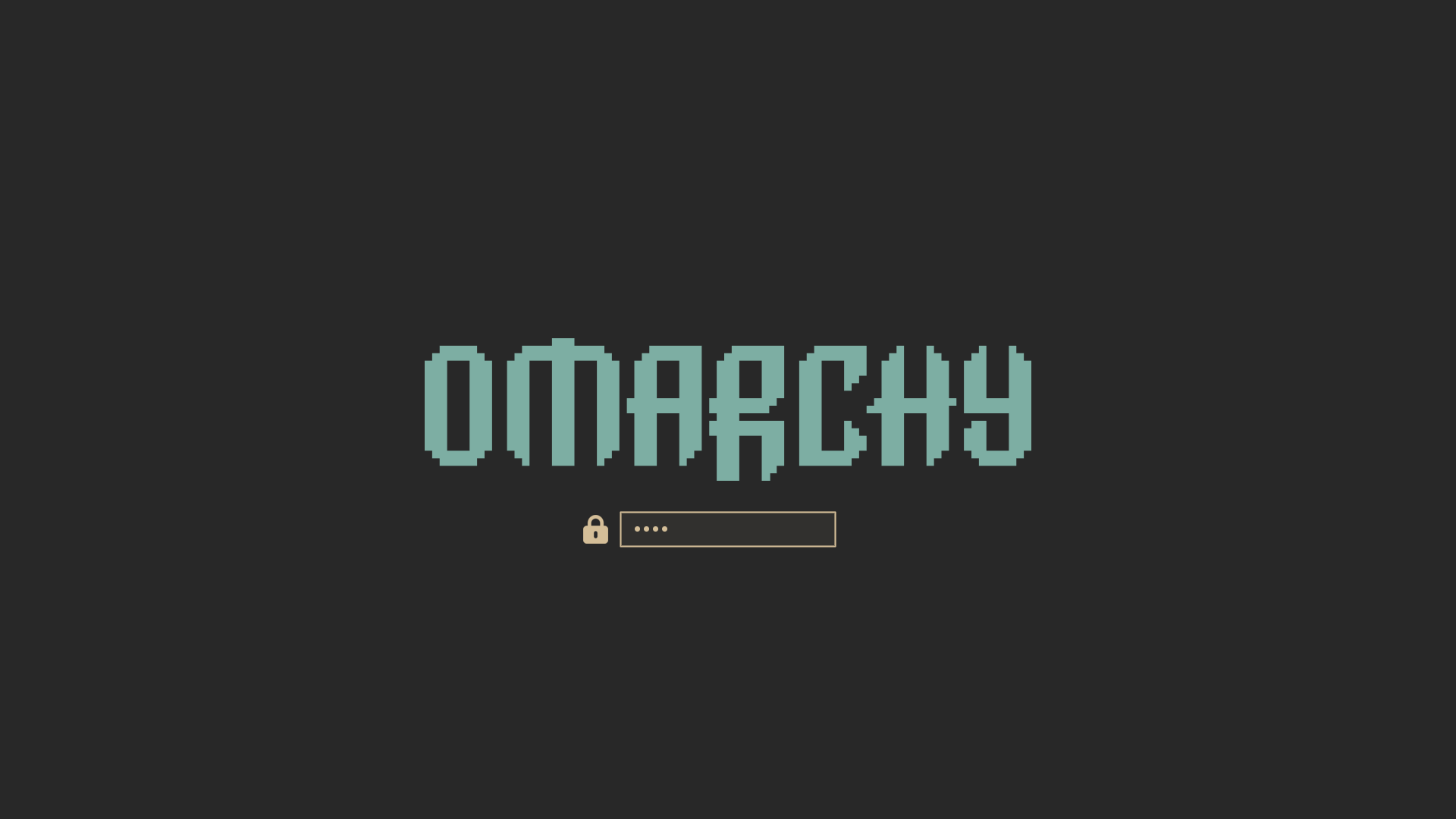 Gruvbox
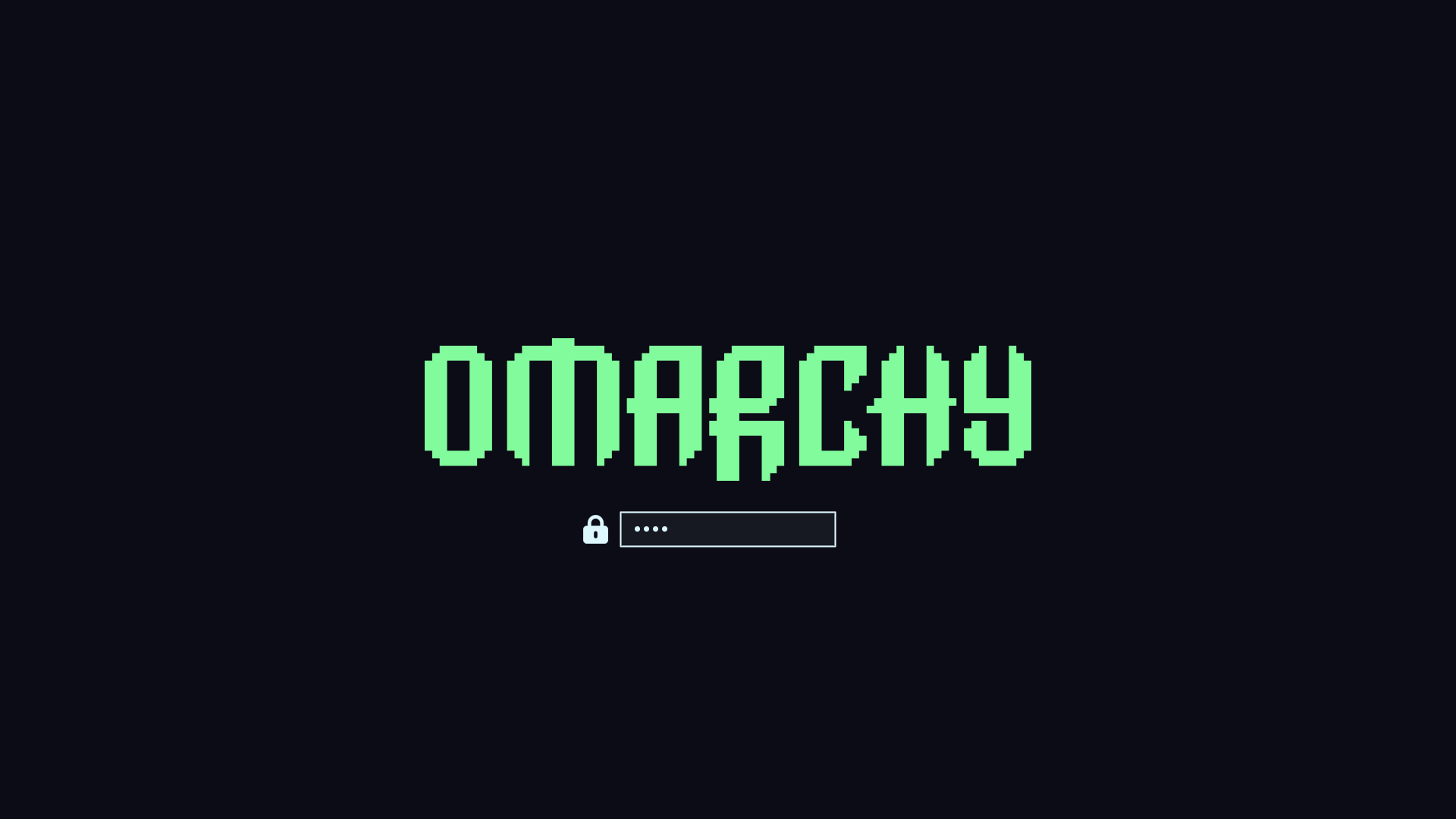 Hackerman
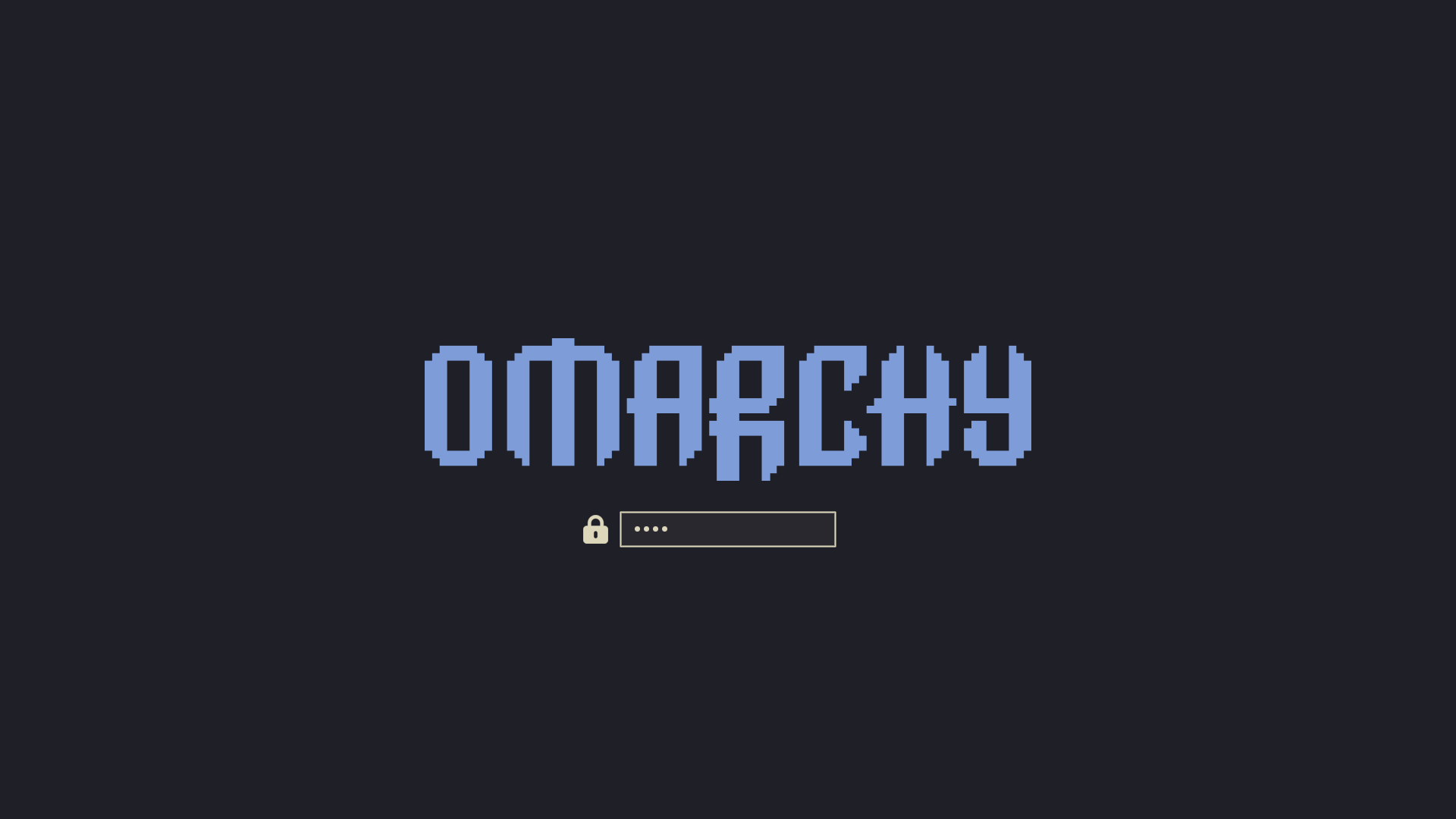 Kanagawa
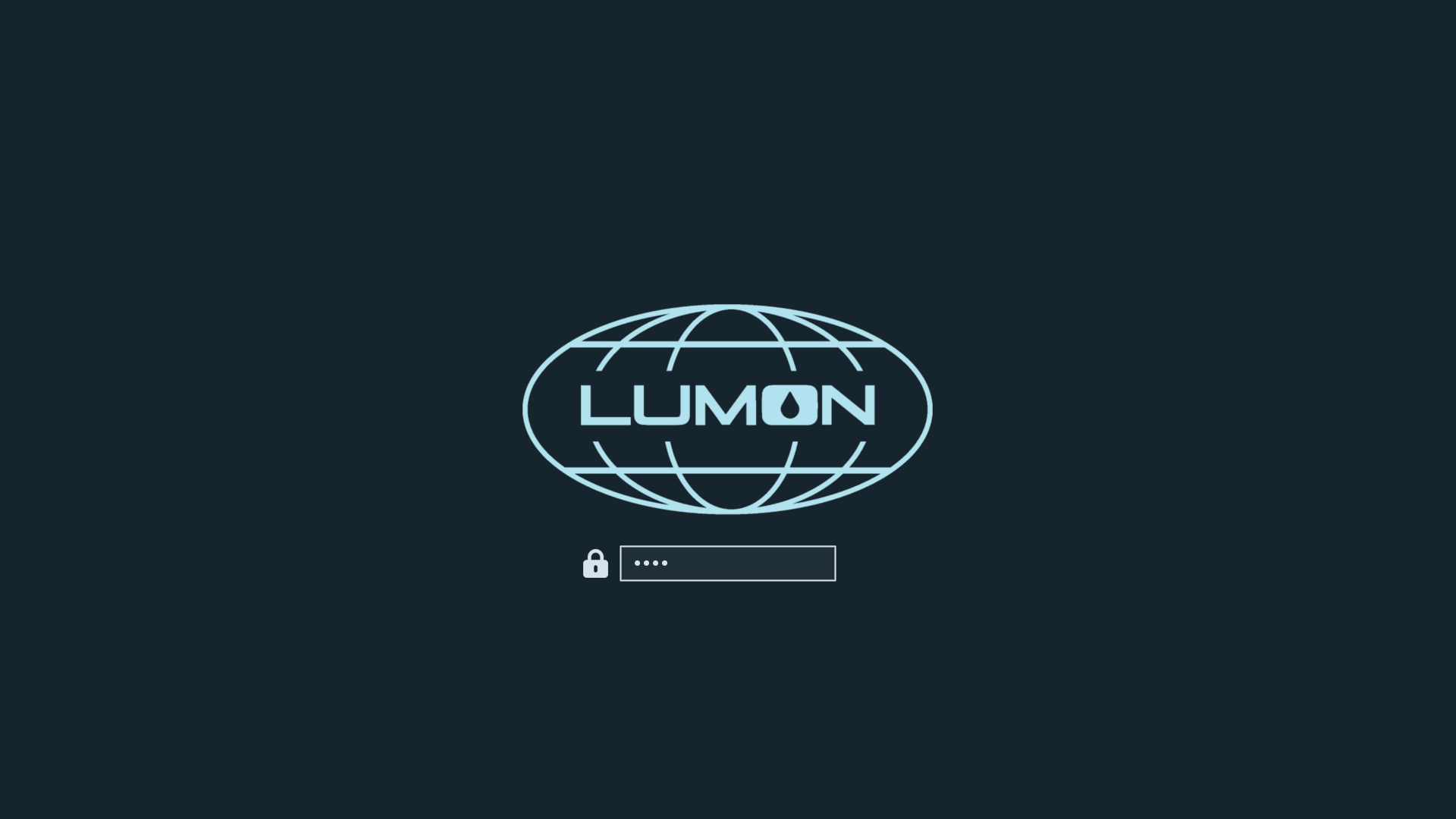 Lumon
Lumon
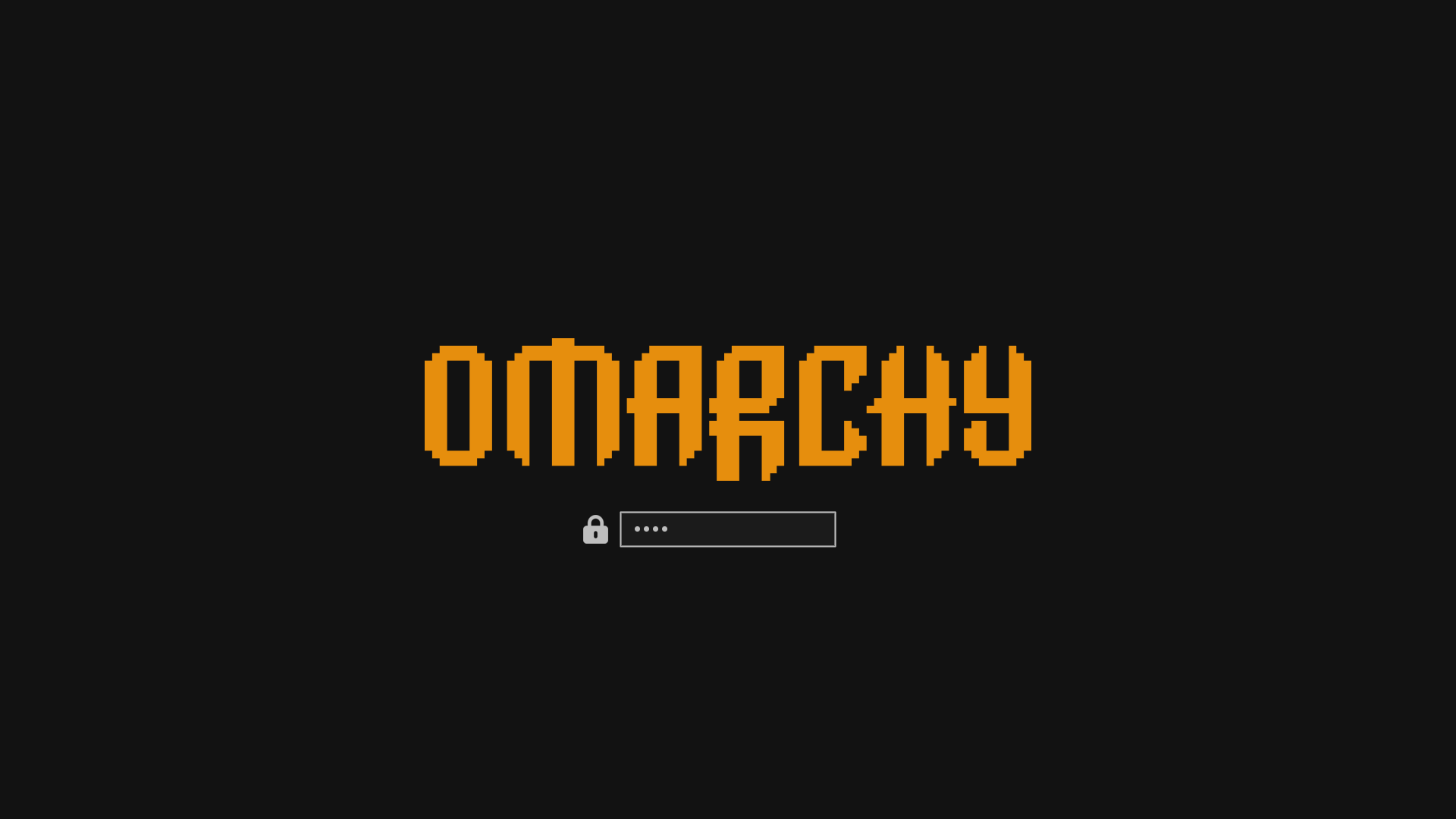 Matte Black
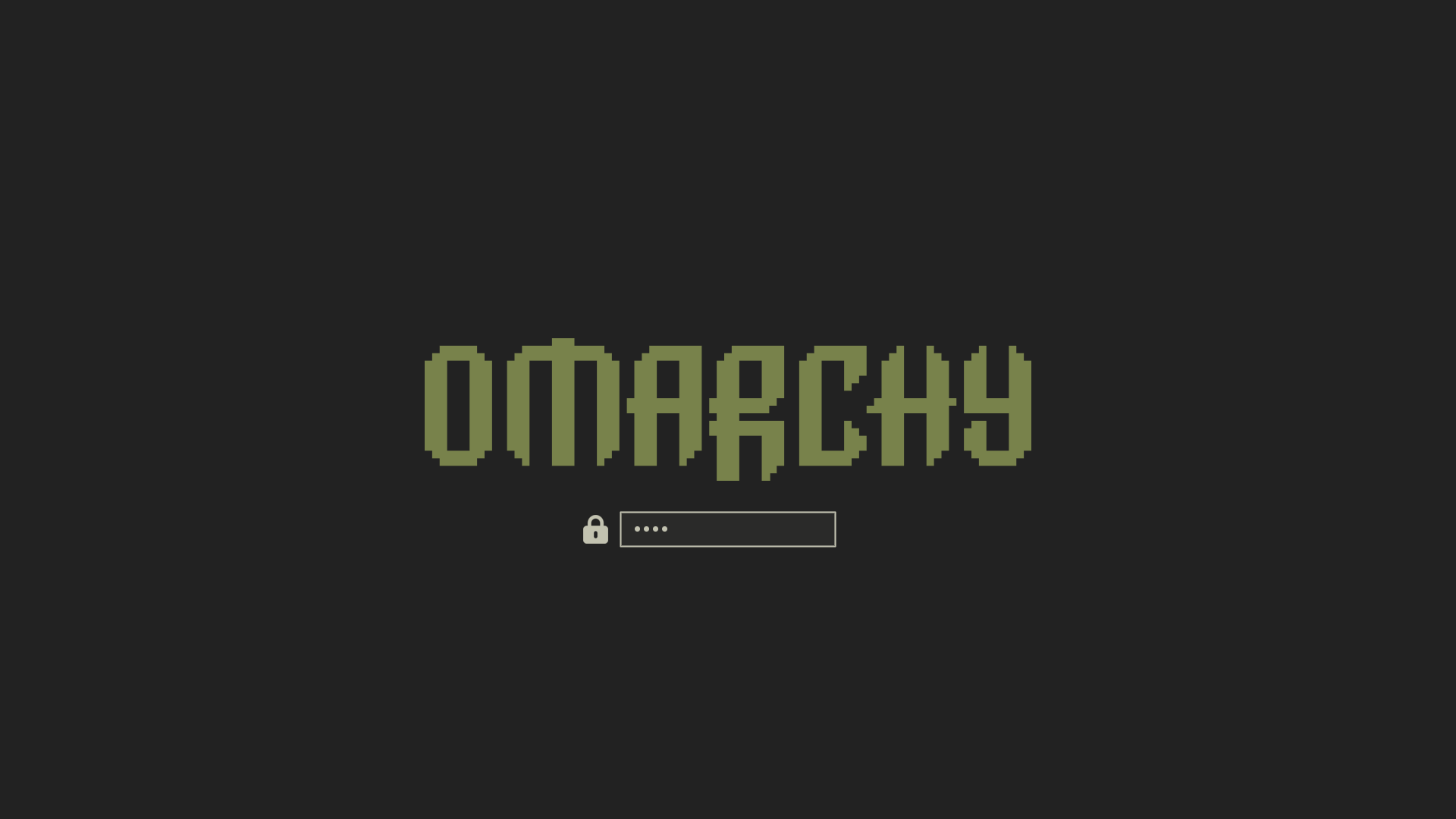 Miasma
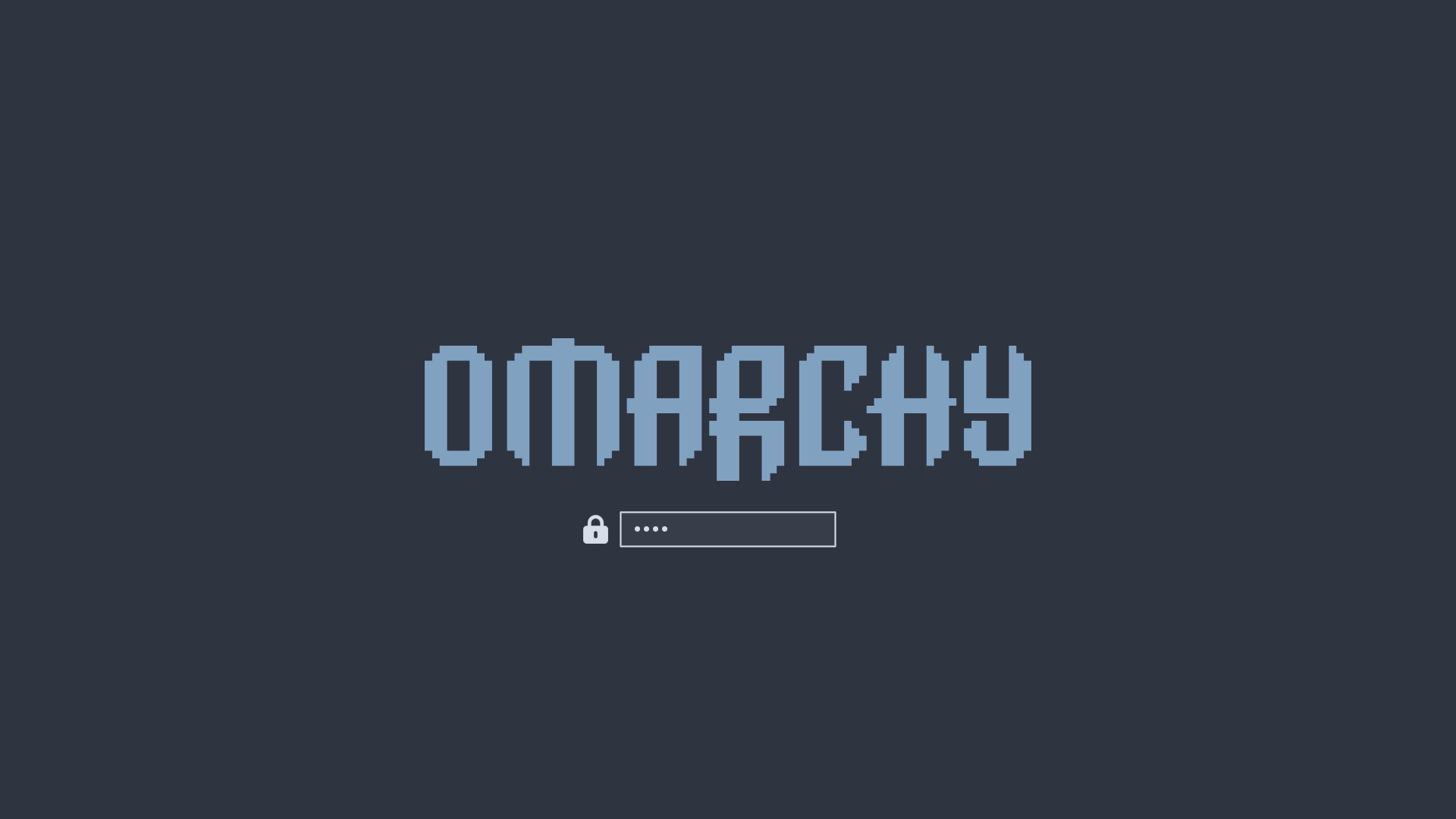 Nord
Nord
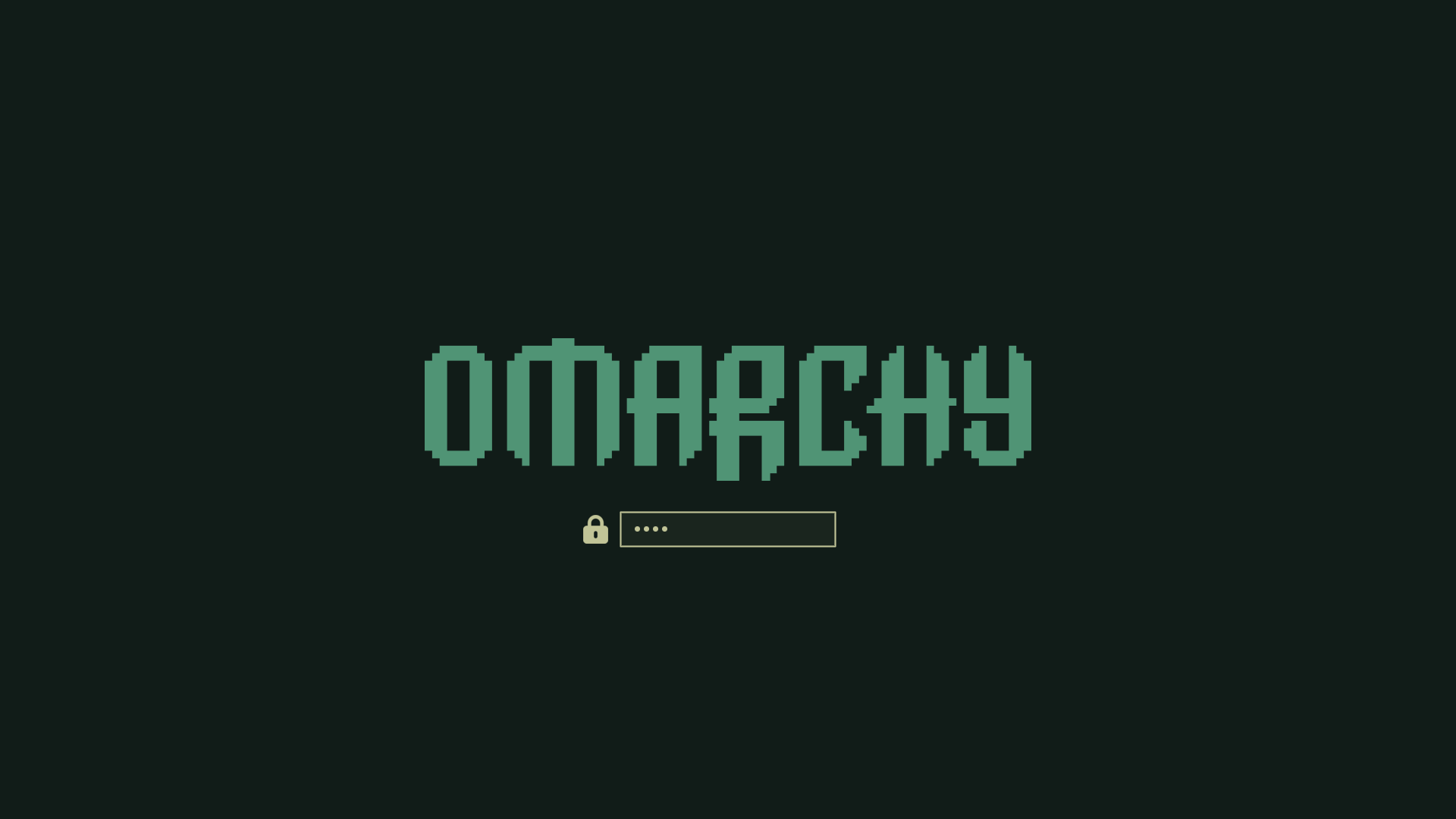 Osaka Jade
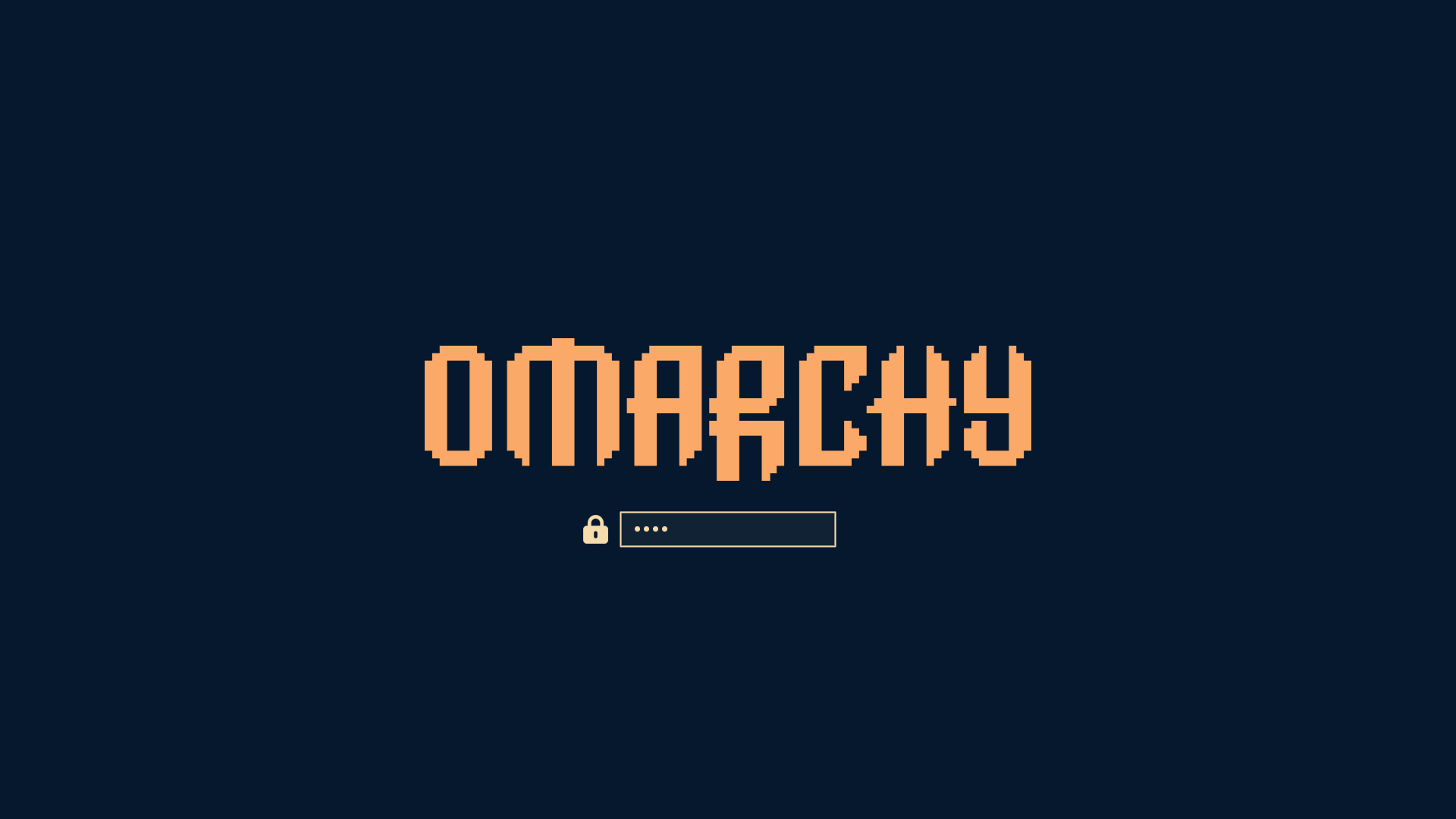 Retro 82
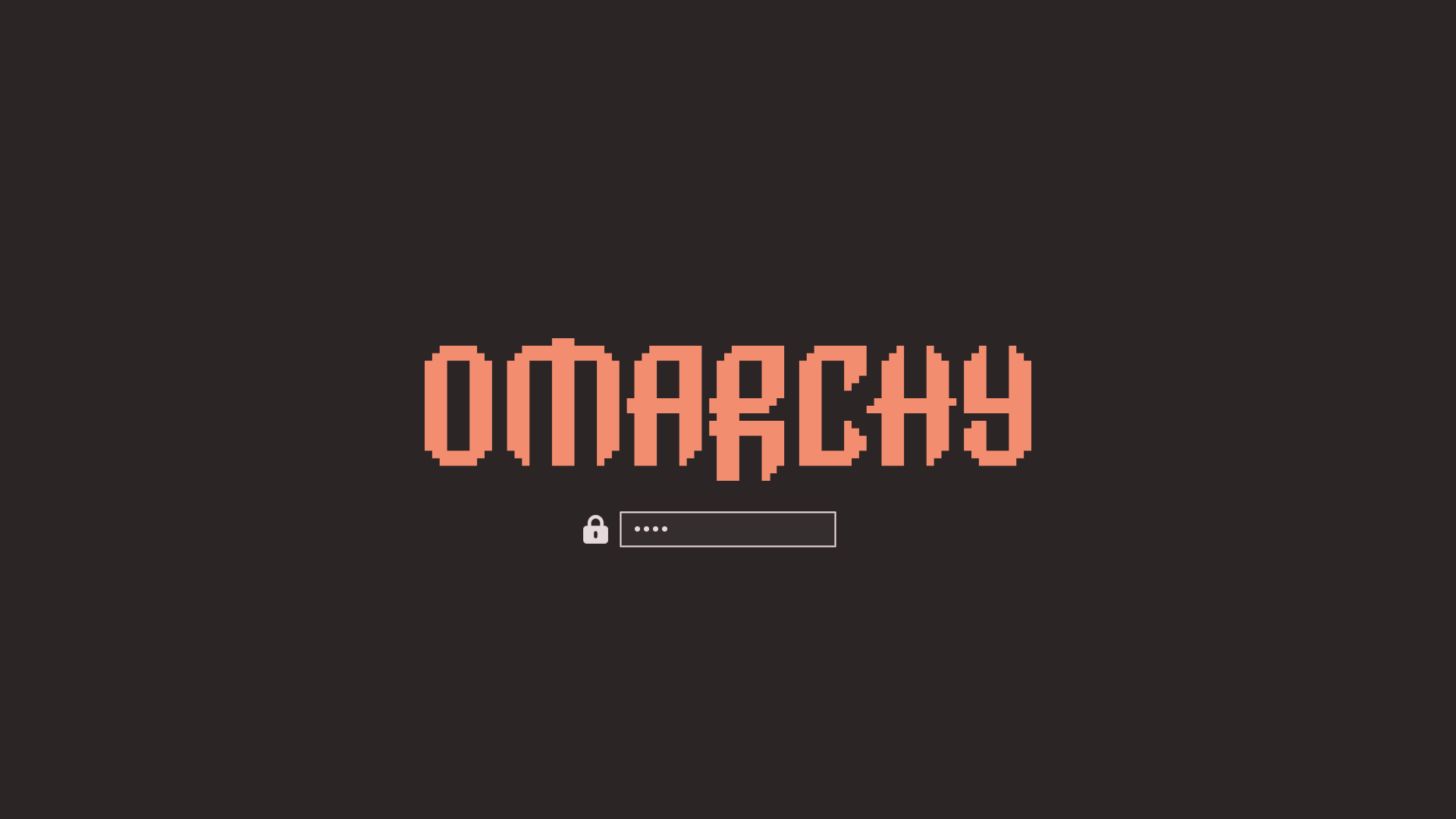 Ristretto
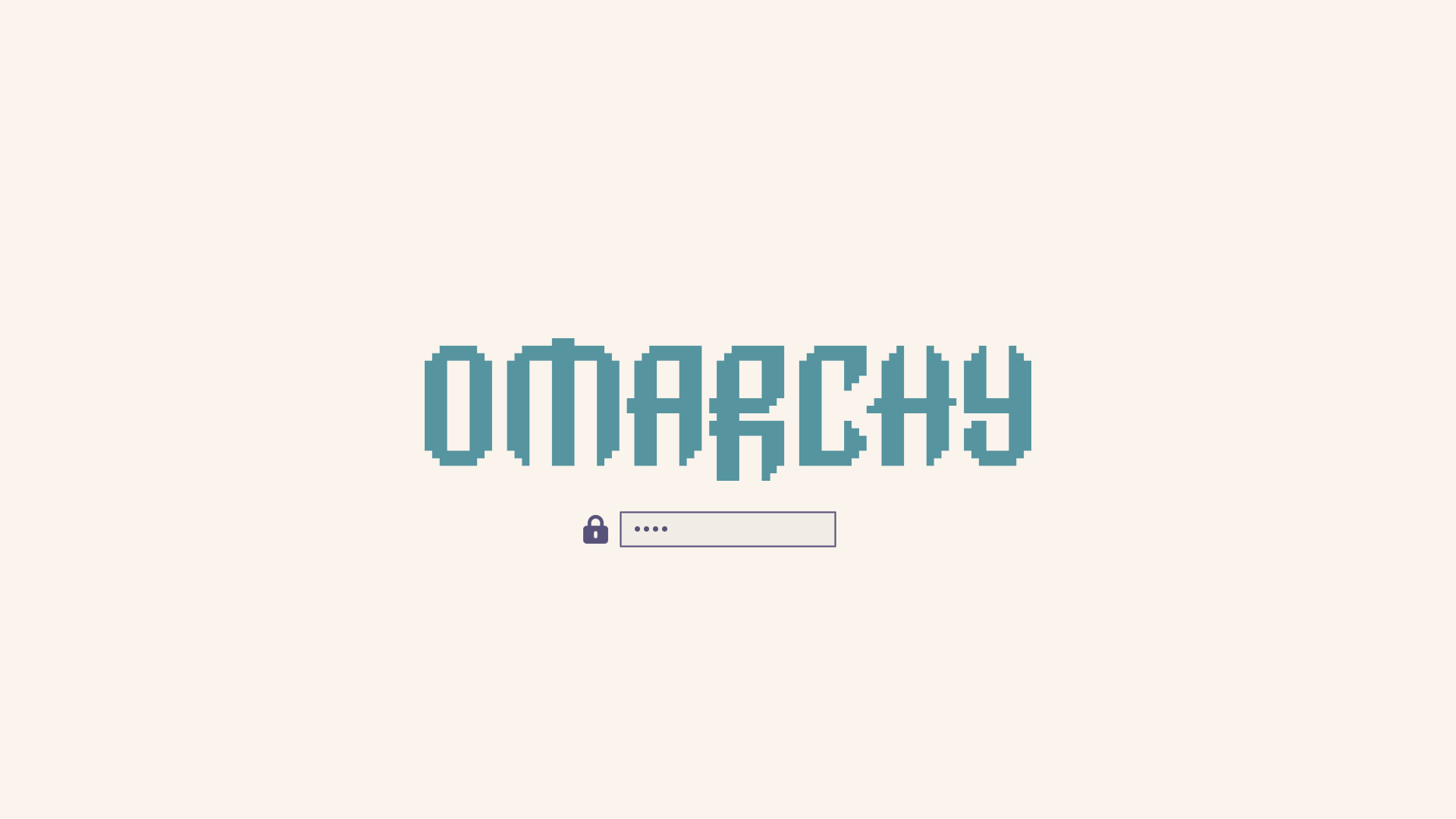 Rose Pine
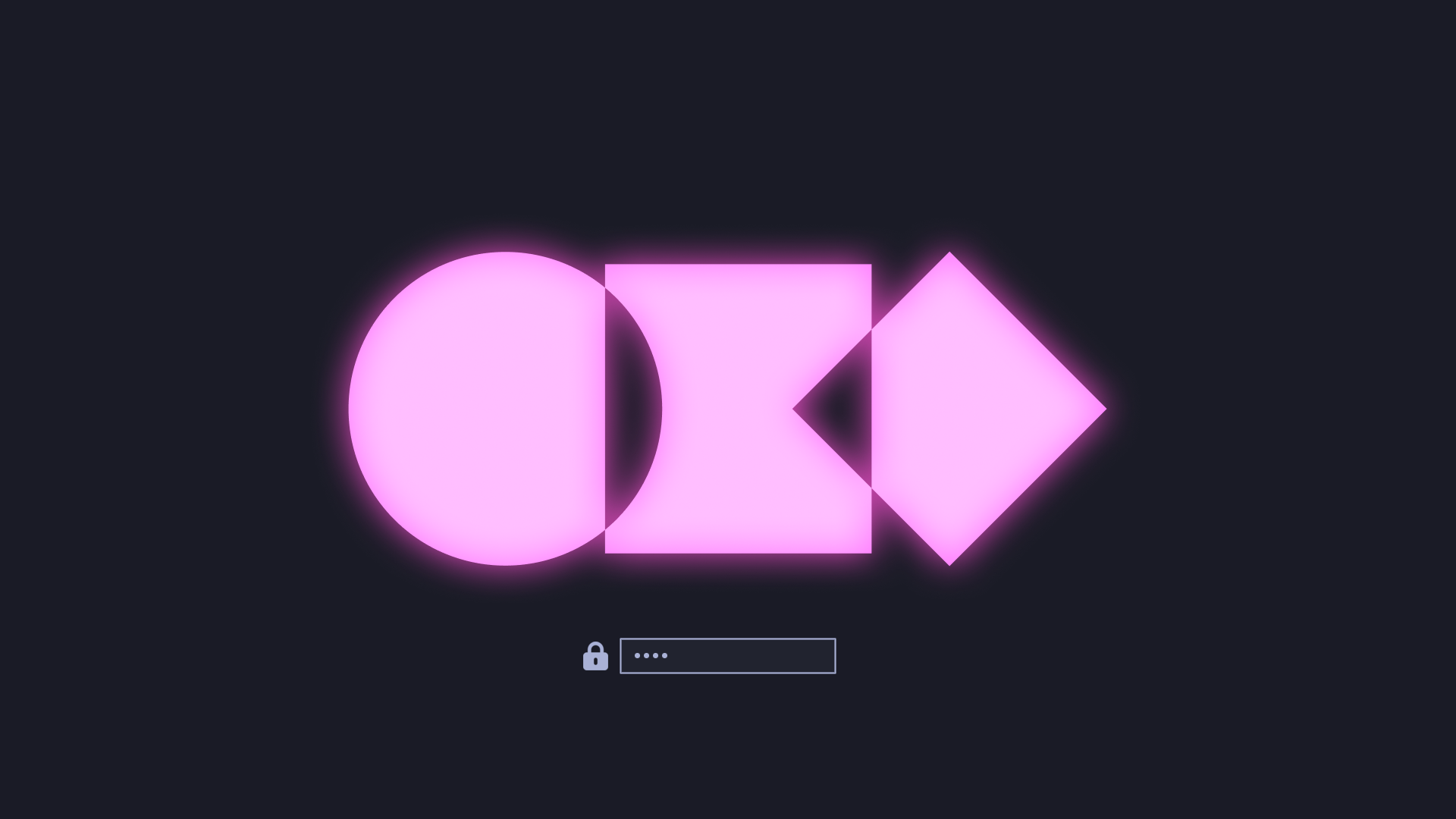 Tokyo Night
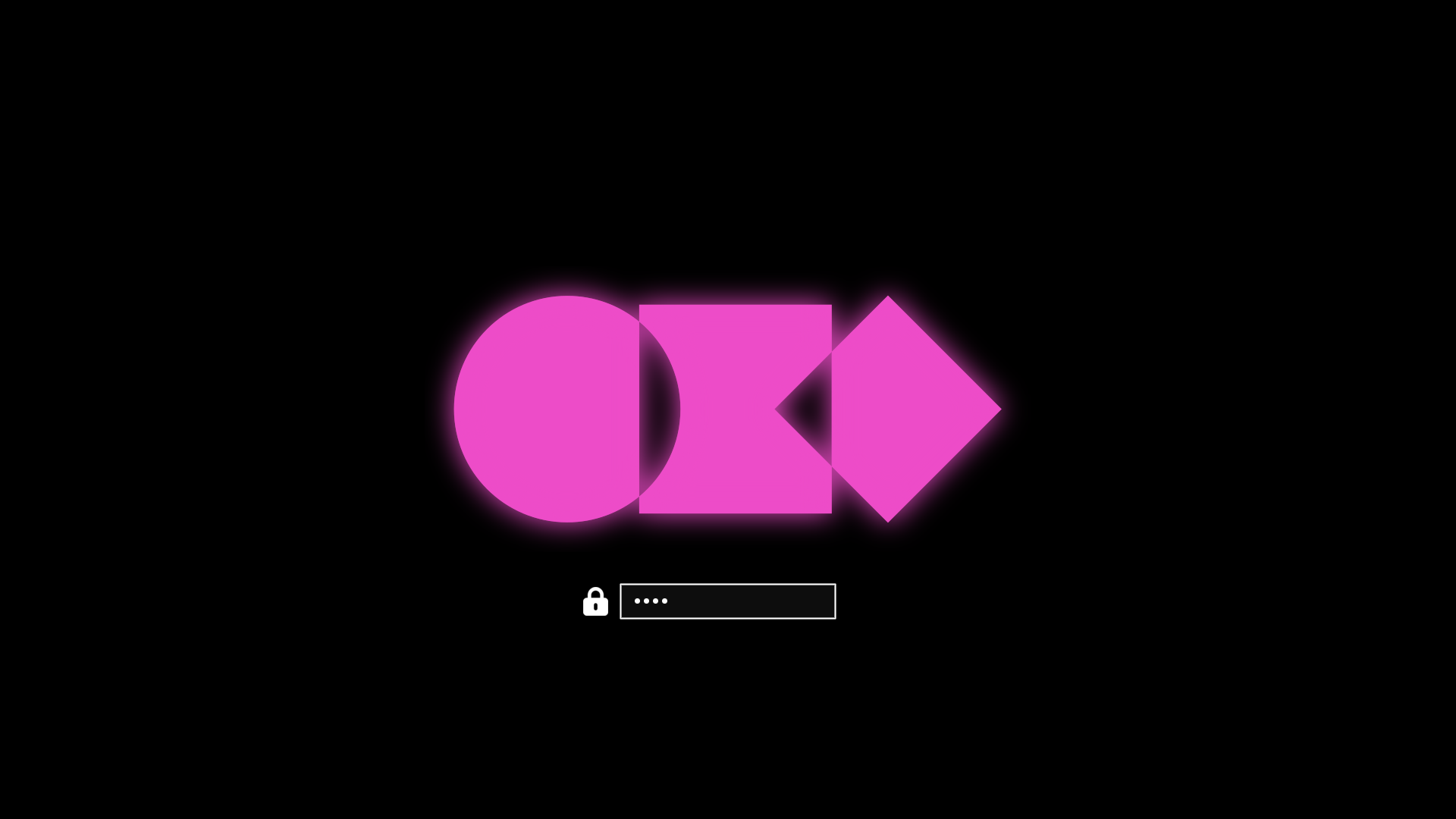 Vantablack
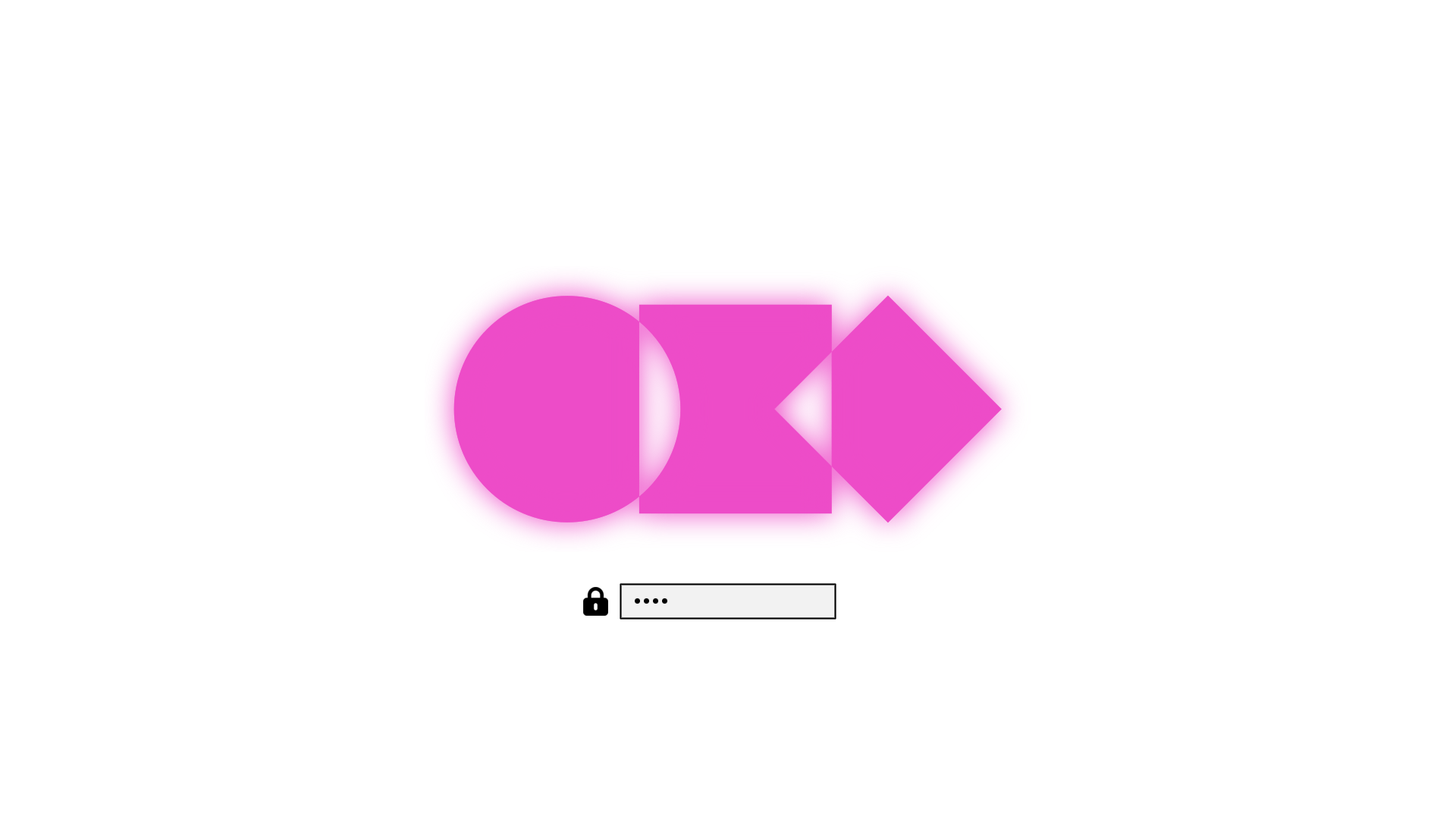 White
White