 David Heinemeier HanssonandClaude Fable 5
55434792d1
David Heinemeier HanssonandClaude Fable 5
55434792d1
Add chapters for the top bar and its panels, screenshots and recording,
toggles/idle/screensaver, browsers, shell plugins, and networking, which
collects the Wi-Fi, DNS, firewall, and Tailscale material that was spread
across the FAQ, TUIs, and services chapters.

Fill smaller gaps in the existing chapters: user hooks, autostart, menu
extensions, printing, power profiles, factory reset, drive and user
passwords, passwordless sudo, firmware updates, display text size, and
the LocalSend share menu.

Co-Authored-By: Claude Fable 5 <noreply@anthropic.com>
25 lines
1.1 KiB
Markdown
25 lines
1.1 KiB
Markdown
# Unified Clipboard & History
|
|
|
|
Usually on Linux, you need `Ctrl + Shift + C/V` to copy'n'paste in the terminal and `Ctrl + C/V` to do it everywhere else. That's hard to get used to for anyone who hasn't been born and bred on Linux! So too is the switch from super to ctrl, if you're coming from the Mac.
|
|
|
|
Omarchy tackles both problems with unified clipboard hotkeys that work (almost) everywhere. They are:
|
|
|
|
| Hotkey | Command |
|
|
| ------- | ----------- |
|
|
| Super + C | Copy |
|
|
| Super + X | Cut |
|
|
| Super + V | Paste |
|
|
| Super + Ctrl + V | Clipboard history |
|
|
|
|
_Note that most agent harnesses will use `Ctrl + V` for pasting images, but `Super + V` for pasting text._
|
|
|
|
### Clipboard history
|
|
|
|
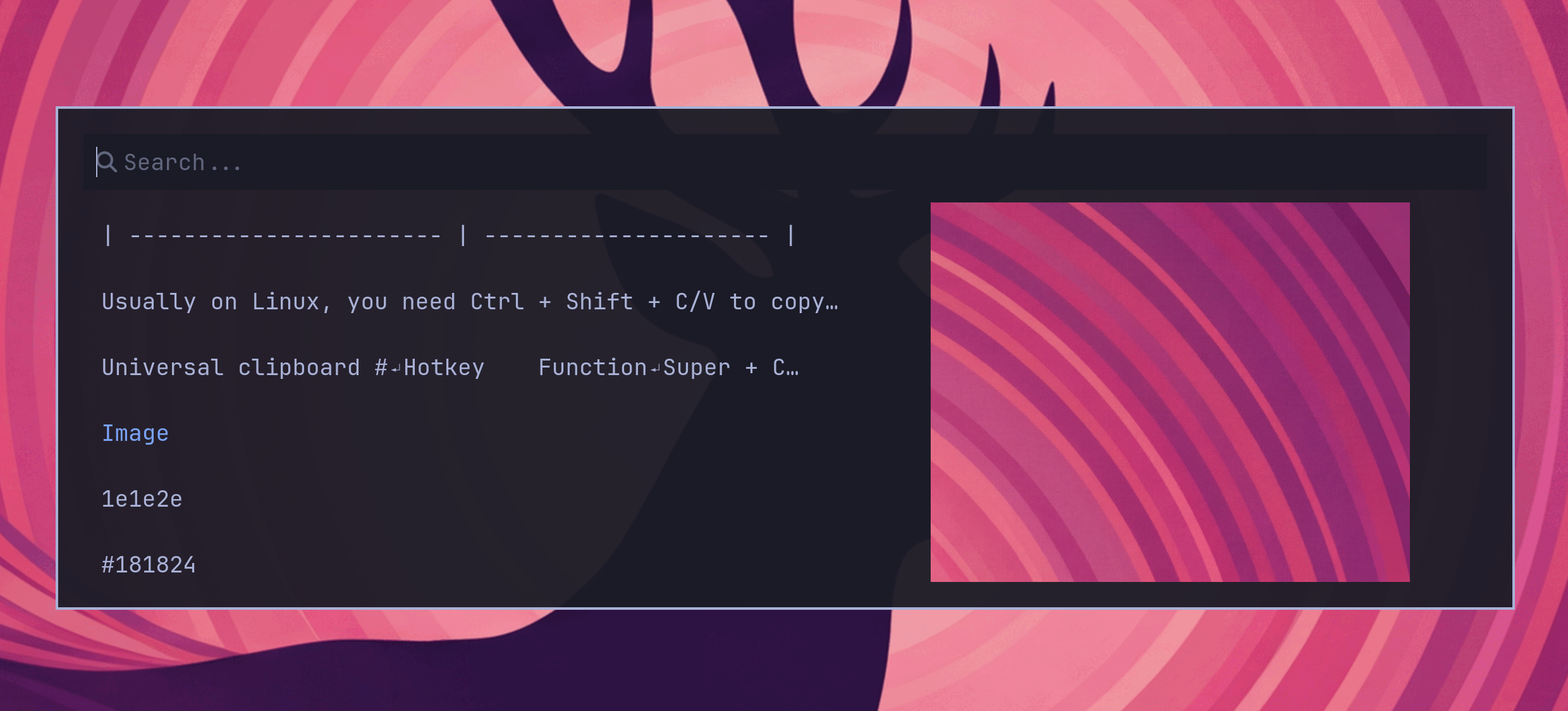
The clipboard history is provided by the Omarchy shell and works for both text and images. You trigger it by `Super + Ctrl + V`, select your entry with return, and then that'll be placed on the clipboard ready to paste on `Super + V`.
|
|
|
|
|
|
|
|
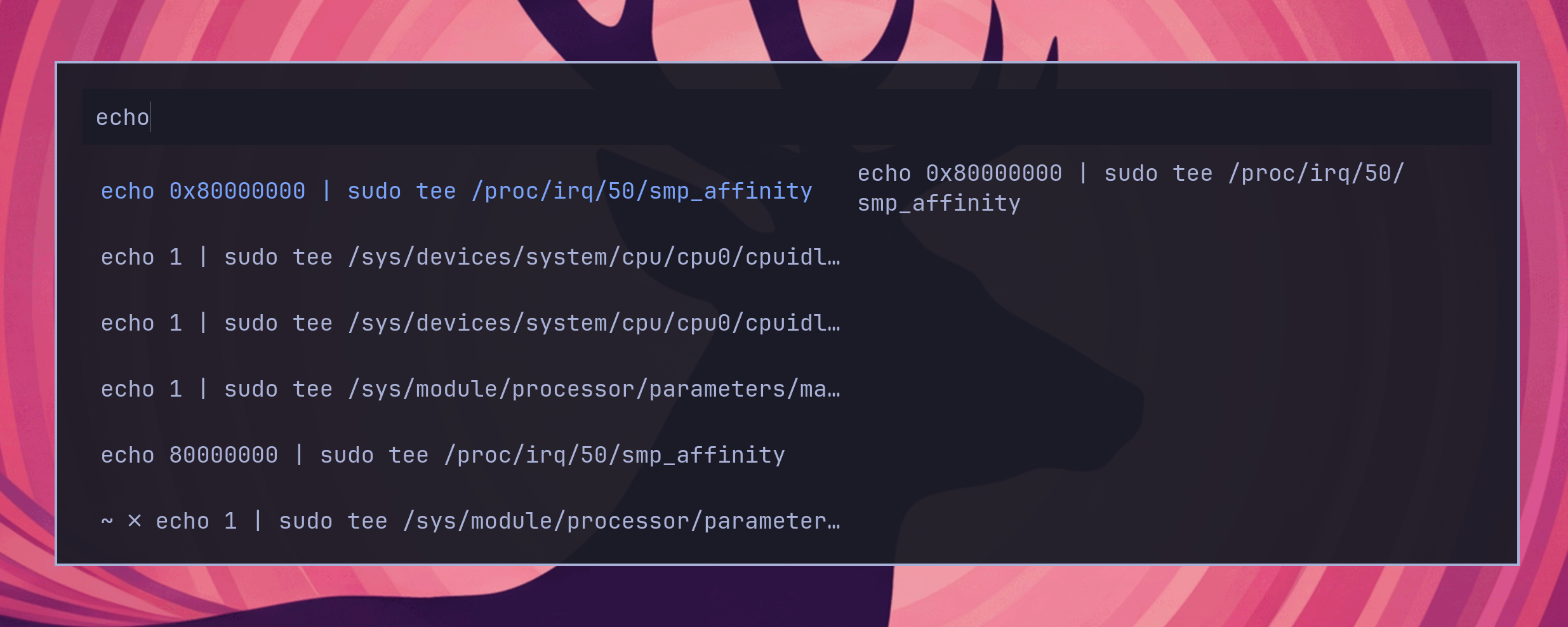
You can also search the history just by starting to type:
|
|
|
|
|