 David Heinemeier HanssonandClaude Fable 5
55434792d1
David Heinemeier HanssonandClaude Fable 5
55434792d1
Add chapters for the top bar and its panels, screenshots and recording,
toggles/idle/screensaver, browsers, shell plugins, and networking, which
collects the Wi-Fi, DNS, firewall, and Tailscale material that was spread
across the FAQ, TUIs, and services chapters.

Fill smaller gaps in the existing chapters: user hooks, autostart, menu
extensions, printing, power profiles, factory reset, drive and user
passwords, passwordless sudo, firmware updates, display text size, and
the LocalSend share menu.

Co-Authored-By: Claude Fable 5 <noreply@anthropic.com>
40 lines
2.5 KiB
Markdown
40 lines
2.5 KiB
Markdown
# Terminal
|
|
|
|
[Foot](https://codeberg.org/dnkl/foot) is the default terminal for Omarchy. It's fast, lightweight, and compatible with even old computers. It does not, however, support native tabs or splits.
|
|
|
|
If you use Tmux, you may not mind, but if not, we fully support _Alacritty_, _Ghostty_, and _Kitty_ as options as well. Pick your preference under _Install > Terminal_ in the Omarchy menu.
|
|
|
|
You start a new terminal using `Super + Return`. (This binding will automatically point to whichever Terminal you've installed via _Install > Terminal_, and you can switch between installed terminals under _Setup > Defaults > Terminal_.)
|
|
|
|
## Tmux
|
|
|
|
Tmux provides a consistent, programmable interface for panes, windows (aka tabs), and resumable sessions regardless of your terminal. It even works on remote hosts, so when you're SSH'ing into a server, you can use the same approach.
|
|
|
|
You start a new Tmux session in a fresh terminal using `Super + Alt + Return`, and because Tmux is a persistent process, you can resume your session even if you close that terminal. Just hit `Ctrl + Space` (called the prefix key) then `s` to see all your active sessions.
|
|
|
|
Omarchy ships with an ergonomically-optimized Tmux configuration, which has a lot of keybindings to learn, so keep [the cheatsheet handy](06-hotkeys.md#tmux).
|
|
|
|
## Tmux layout functions
|
|
|
|
Because Tmux is programmable, we can use functions to create layouts. Omarchy ships with four different functions for common developer layouts.
|
|
|
|
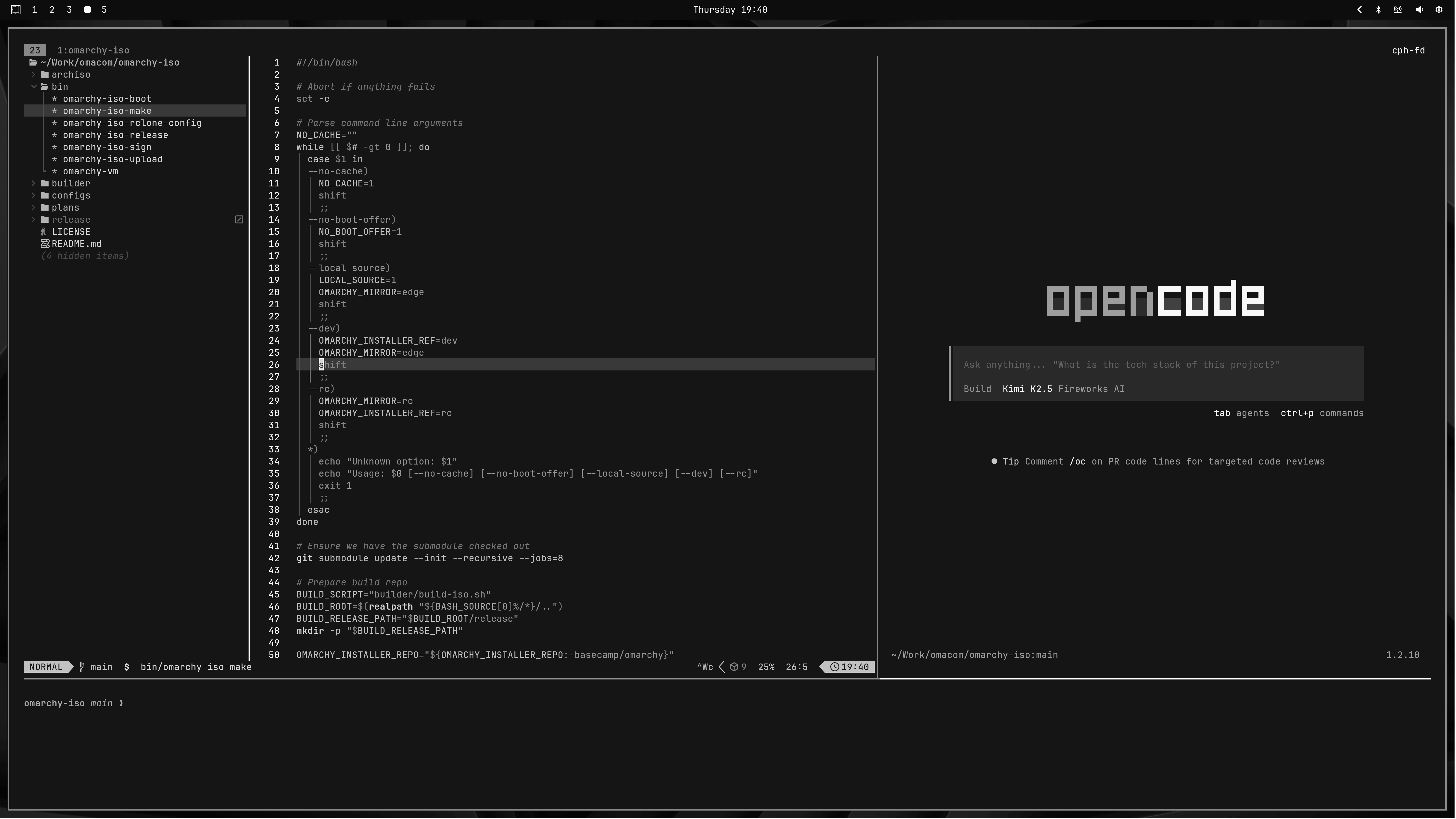
`tdl [agent]` starts a three-way split IDE-like interface with the `$EDITOR` on the left, your chosen AI agent on the right (like `c` for opencode or `cx` for Claude or `codex` for OpenAI), and then a terminal at the bottom.
|
|
|
|
So `tdl c` would start this (or just `ic`):
|
|
|
|
|
|
|
|
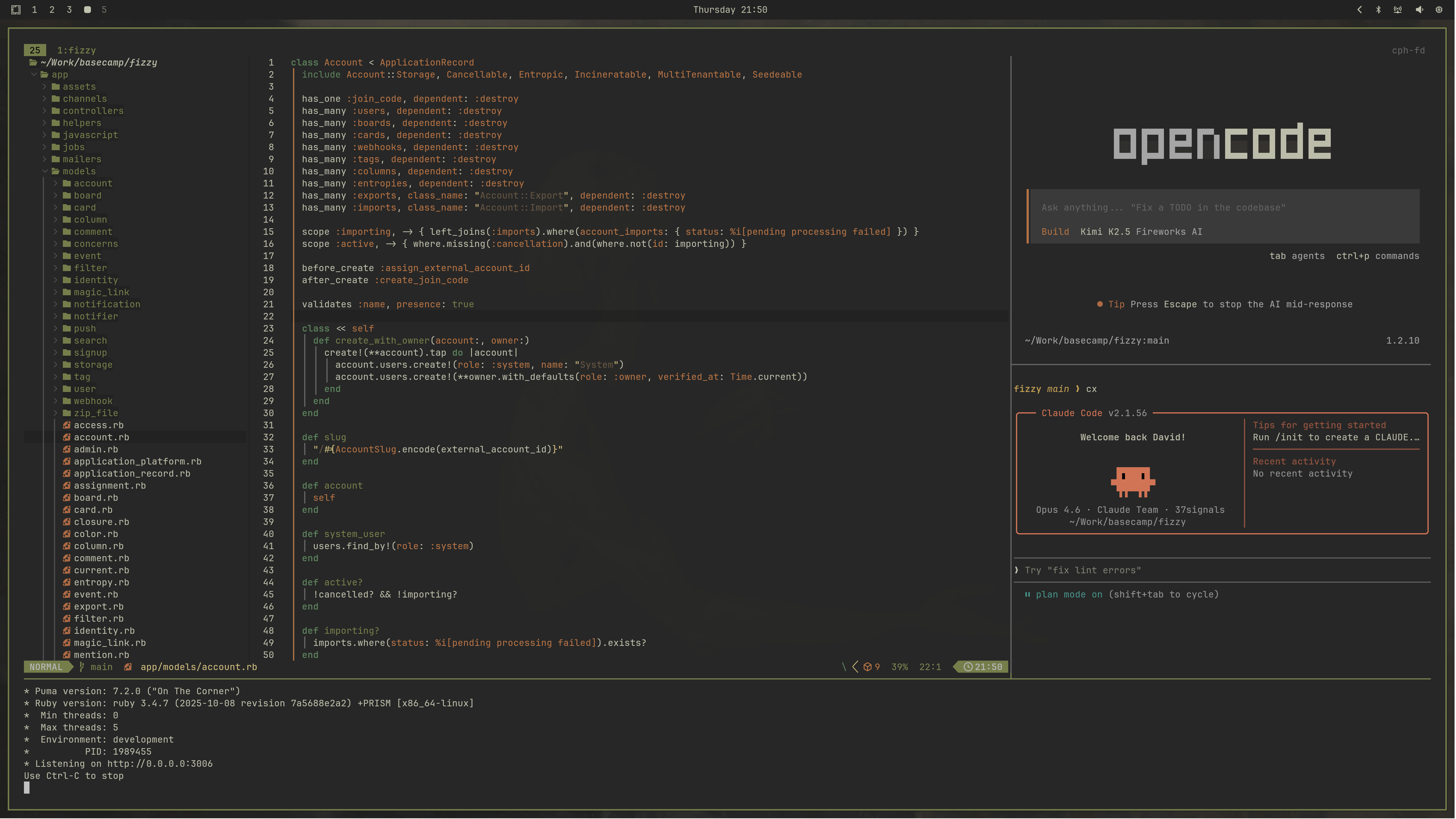
You can also start a second agent with `tdl c cx` (opencode + claude) (or just `icx`):
|
|
|
|
|
|
|
|
There's also `tds`, which starts a four-way square with the editor top left, a live diff watcher top right, a terminal bottom left, and opencode bottom right.
|
|
|
|
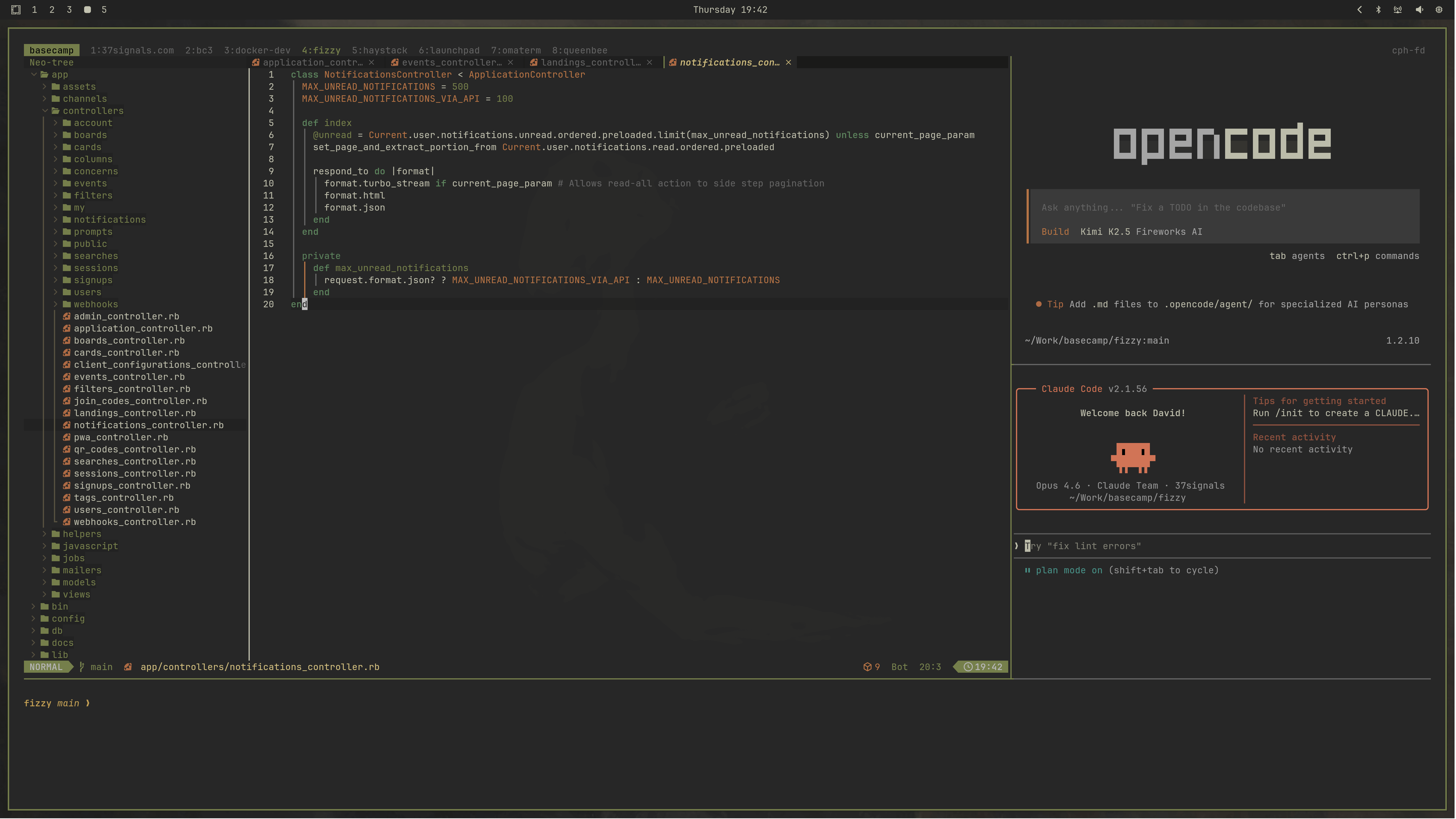
You can also start this layout configuration for every subdirectory in the current directory using `tdlm [agent]`, then navigate using `alt + 1/2/3/4/5/...`:
|
|
|
|
|
|
|
|
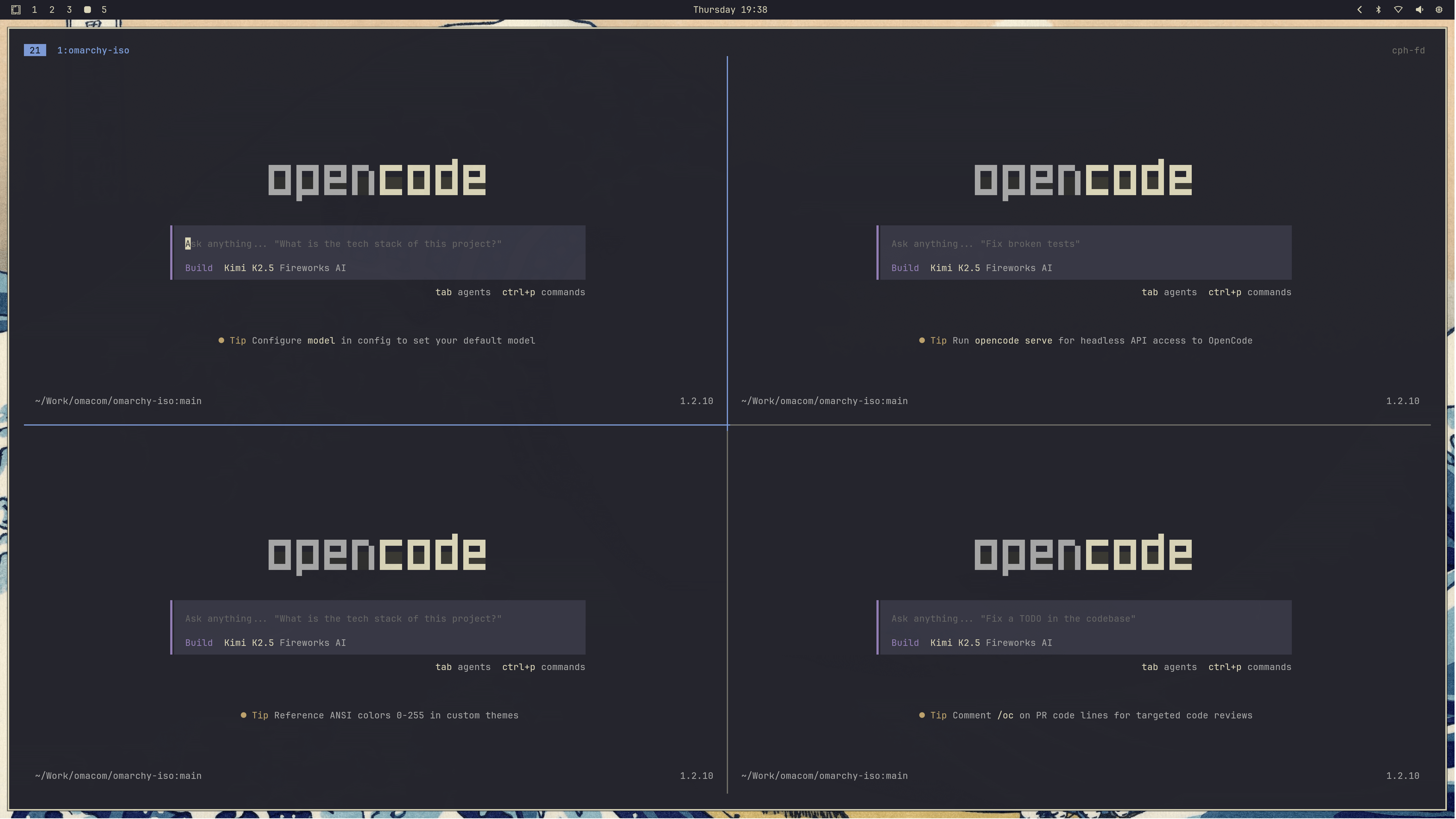
Finally, you can start a swarm of agents using `tsl [panes] [command]`. So `tsl 4 c` will give you a four-way grid of opencode agents:
|
|
|
|
|