 David Heinemeier HanssonandClaude Fable 5
55434792d1
David Heinemeier HanssonandClaude Fable 5
55434792d1
Add chapters for the top bar and its panels, screenshots and recording,
toggles/idle/screensaver, browsers, shell plugins, and networking, which
collects the Wi-Fi, DNS, firewall, and Tailscale material that was spread
across the FAQ, TUIs, and services chapters.

Fill smaller gaps in the existing chapters: user hooks, autostart, menu
extensions, printing, power profiles, factory reset, drive and user
passwords, passwordless sudo, firmware updates, display text size, and
the LocalSend share menu.

Co-Authored-By: Claude Fable 5 <noreply@anthropic.com>
72 lines
3.8 KiB
Markdown
72 lines
3.8 KiB
Markdown
# Mac support
|
||
|
||
Omarchy has built-in support for **Intel Macs**. There are a couple of known limitations at the moment, but as long as you're aware and OK with those; you can breathe some new life into your old Macs by loading Omarchy.
|
||
|
||
Please note that installing on an M-series Mac is not directly supported at this time. You can find out more about the state of this in #omarchy-on-other in our [Discord](https://discord.gg/tXFUdasqhY).
|
||
|
||
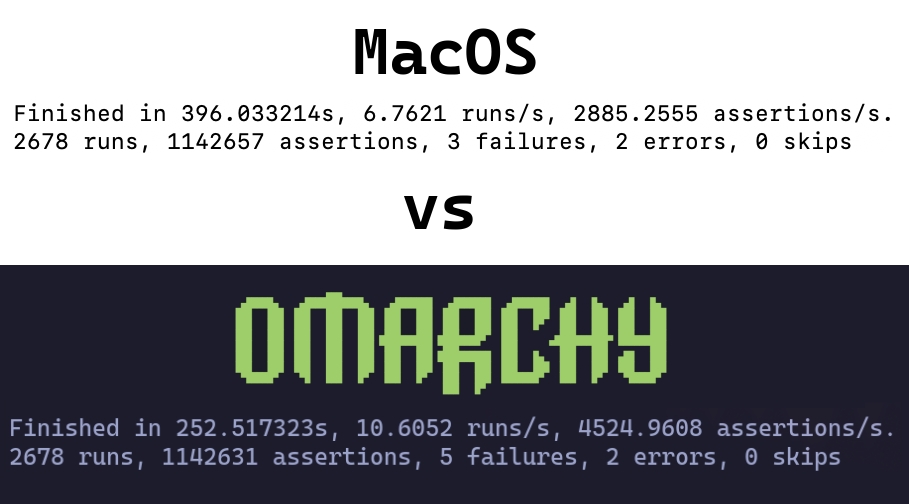
In a simple test, we were able to achieve 36% performance gains on a 2019 MacBook Pro just by installing Omarchy.
|
||
|
||
|
||
|
||
### Installing Omarchy on Mac
|
||
|
||
Omarchy only supports being the **only** OS installed at the moment. During the installation, the drive will be wiped and MacOS will no longer be bootable.
|
||
|
||
You can still restore it later via Internet Recovery if you'd like.
|
||
|
||
For the sake of this part, we'll assume you've already reviewed [Getting Started](02-getting-started.md) and have your USB drive ready. If you don't go ahead and do that now.
|
||
|
||
#### Disable Secure Boot
|
||
|
||
It is necessary to disable Apple's Secure Boot in order to boot the bootable USB, as well as the OS. To disable it, perform the following:
|
||
|
||
1. Turn off your Mac
|
||
2. Turn it on and _immediately_ press and hold Command-R until you see the loading screen appear
|
||
3. Select your user and enter your password if prompted
|
||
4. Once in the recovery screen, choose **Utilities > Startup Security Utility** from the menubar
|
||
5. Enter your password when prompted to authenticate
|
||
6. Choose "No Security" from the Secure Boot options
|
||
7. Choose "Allow booting from external or removable media" from the External Boot options
|
||
|
||
#### Start the Installation
|
||
|
||
1. Insert the USB drive
|
||
2. Restart your Mac and _immediately_ press and hold Option until you see a screen of boot devices
|
||
3. Select the orange EFI Boot device
|
||
4. Proceed with the [install as normal](02-getting-started.md)
|
||
|
||
The installer detects Mac hardware and applies the needed fixes automatically: Broadcom Wi-Fi drivers and firmware, the SPI keyboard driver on the MacBook models that need it, and an NVMe suspend fix for those same models.
|
||
|
||
### Known Limitations
|
||
|
||
Members of the community are constantly working on solutions to these challenges so if these are problematic for you, join #omarchy-on-other in our [Discord](https://discord.gg/tXFUdasqhY) and see if there's any up-to-date methods for resolving these.
|
||
|
||
#### Devices with T1 Chip
|
||
|
||
The Apple T1 chip was introduced in late 2016 and used exclusively in the first-generation MacBook Pro models with Touch Bar.
|
||
- MacBook Pro 13-inch (2016, two Thunderbolt 3 ports) – Model: A1706
|
||
- MacBook Pro 13-inch (2016, four Thunderbolt 3 ports) – Model: A1708
|
||
- MacBook Pro 15-inch (2016) – Model: A1707
|
||
|
||
#### Known Issues
|
||
|
||
- Touch Bar is non-functional
|
||
- Sound is not functioning
|
||
|
||
#### Devices with T2 Chip
|
||
|
||
The Apple T2 Security Chip was introduced in 2017. The T2 chip was discontinued with the transition to Apple silicon (M-series chips) starting in 2020.
|
||
|
||
- iMac Pro (2017) – Model: A1862
|
||
- MacBook Pro 13-inch (2018, four Thunderbolt 3 ports) – Model: A1989
|
||
- MacBook Pro 15-inch (2018) – Model: A1990
|
||
- MacBook Air (Retina, 13-inch, 2018) – Model: A1932
|
||
- Mac mini (2018) – Model: A1998
|
||
- MacBook Pro 13-inch (2019, two Thunderbolt 3 ports) – Model: A2159
|
||
- MacBook Pro 13-inch (2019, four Thunderbolt 3 ports) – Model: A2178
|
||
- MacBook Pro 15-inch (2019) – Model: A1990
|
||
- MacBook Pro 13-inch (2020, two Thunderbolt 3 ports) – Model: A2265
|
||
- MacBook Pro 15-inch (2020) – Model: A1990
|
||
|
||
On these models, the installer automatically sets up the patched `linux-t2` kernel, the T2 audio configuration, Apple's Broadcom Wi-Fi/Bluetooth firmware, and fan control via `t2fanrd`. The Touch Bar runs on the kernel's built-in Boot Camp-style support.
|