 David Heinemeier HanssonandClaude Fable 5
1ae83f1606
David Heinemeier HanssonandClaude Fable 5
1ae83f1606
Add "Coming From Mac or Windows" as chapter 3: a translation layer for
Cmd/Win instincts rather than a feature tour.

Fill the remaining coverage gaps: fcitx5 input methods, laptop speaker
tuning, touchpad haptics, crash capture in the toggle table, the
installable font list, and the ChatGPT Desktop and Grok Bot entries.

Correct claims that drifted from the source: the network and bluetooth
bar icons no longer launch nmtui/bluetoothctl, monitor scaling steps
rather than cycles, and the display widget's scroll steps brightness.

Co-Authored-By: Claude Fable 5 <noreply@anthropic.com>
25 lines
1.1 KiB
Markdown
25 lines
1.1 KiB
Markdown
# Unified Clipboard & History
|
|
|
|
Usually on Linux, you need `Ctrl + Shift + C/V` to copy'n'paste in the terminal and `Ctrl + C/V` to do it everywhere else. That's hard to get used to for anyone who hasn't been born and bred on Linux! So too is the switch from super to ctrl, if you're coming from the Mac.
|
|
|
|
Omarchy tackles both problems with unified clipboard hotkeys that work (almost) everywhere. They are:
|
|
|
|
| Hotkey | Command |
|
|
| ------- | ----------- |
|
|
| Super + C | Copy |
|
|
| Super + X | Cut |
|
|
| Super + V | Paste |
|
|
| Super + Ctrl + V | Clipboard history |
|
|
|
|
_Note that most agent harnesses will use `Ctrl + V` for pasting images, but `Super + V` for pasting text._
|
|
|
|
### Clipboard history
|
|
|
|
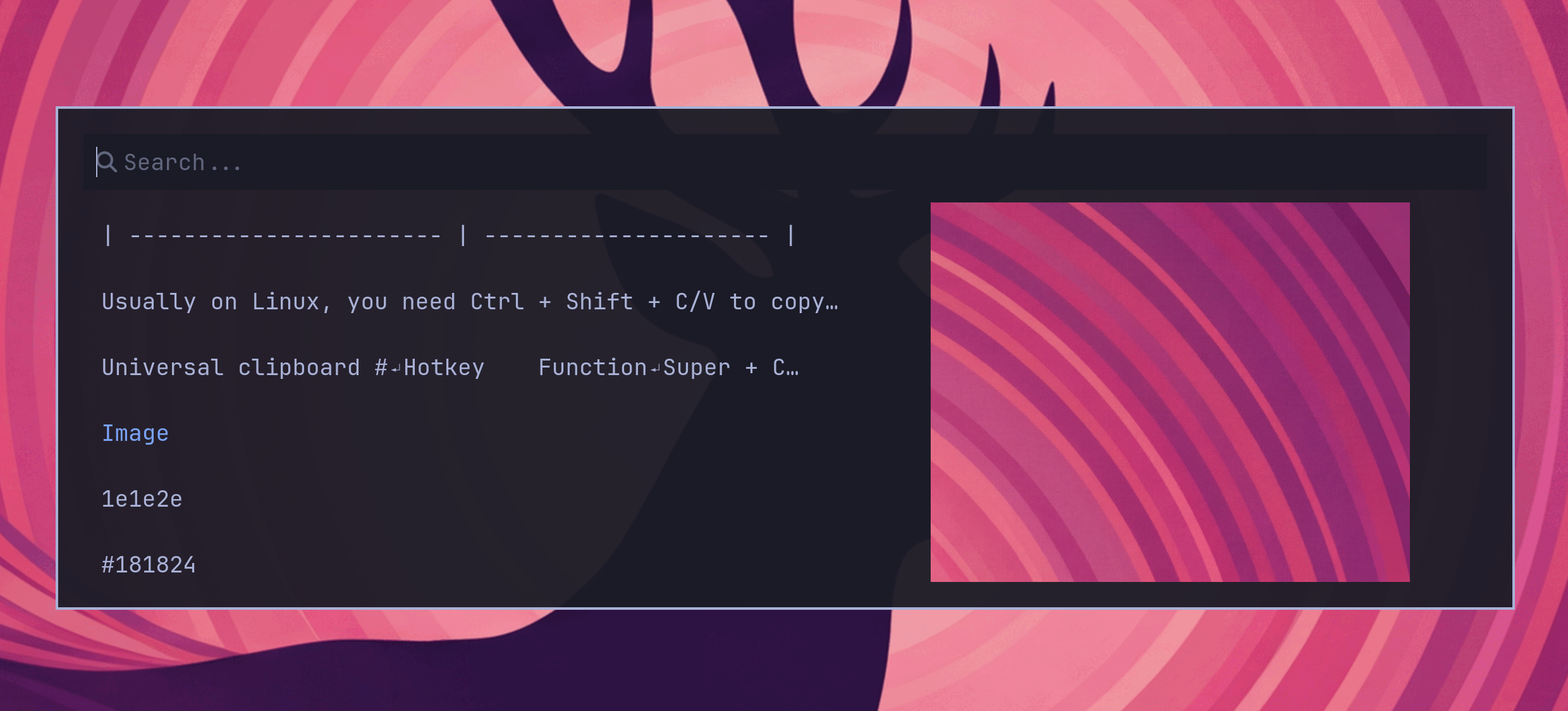
The clipboard history is provided by the Omarchy shell and works for both text and images. You trigger it by `Super + Ctrl + V`, select your entry with return, and then that'll be placed on the clipboard ready to paste on `Super + V`.
|
|
|
|
|
|
|
|
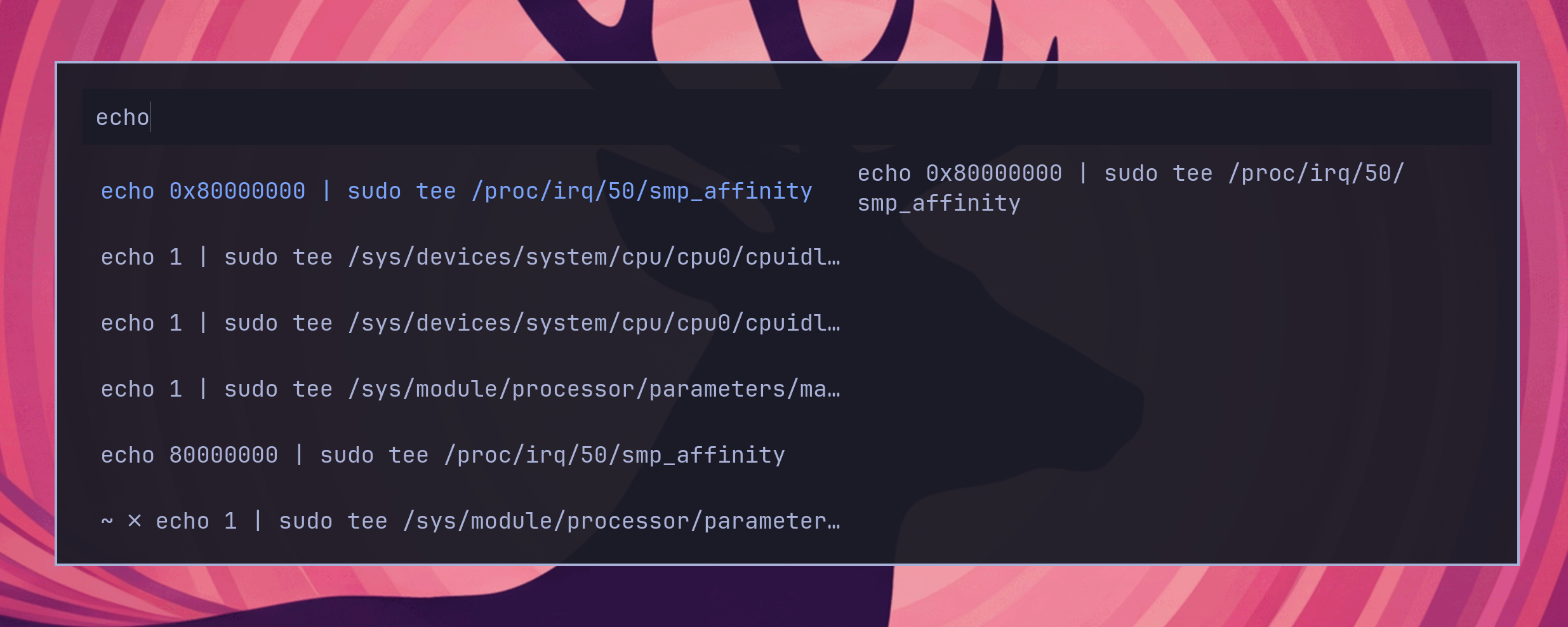
You can also search the history just by starting to type:
|
|
|
|
|